In this example, temperature and PV power are to be compared.
Setting the OpenAI connection
The secret key must be entered for communication. This can be created at: https://platform.openai.com/api-keys.
The version of the AI must be entered under Model, for example gpt-4.1.
The timeout time defines when a communication interruption should be recognised.
The number of response tokens specifies the maximum number of tokens that may be used for a response.
In this context, model temperature refers to the behaviour of the AI with regard to the response:
0.0 → extremely deterministic, i.e. always the same (most objective) answer
0.5 → balanced mix of creativity and precision
1.0 → more variety, more "courage to leave gaps", freer answers
>1.0 → sometimes very experimental or unreliable
With a specification for the system prompt, the AI is told how it should process the data. It is assigned a role such as: "You are a data analyst for time series".
The polling interval can be set in the second tab "Options". This is the time in which the response is retrieved. ChatGPT writes its response continuously, character by character. To avoid having to fetch each individual character separately, a sensible size should be selected here.
Session timeout defines the time after a previous conversation is discarded.
The maximum number of data points can be limited in order to shorten the calculation time.
The padding option means that if not all channels have a value at a certain time, the last known value is used.
Define prompts
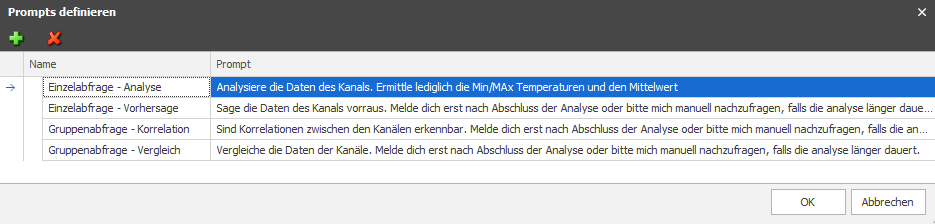
Queries (questions to OpenAI) can be predefined in this editor. The query prompts could be something like:
"Analyse the channel data. Determine only the min/max temperatures and the mean value",
or for group queries:
"Are there any recognisable correlations between the channels. Do not report until the analysis is complete or ask me manually if the analysis takes longer."
For the name of the prompts, it makes sense to add the information for individual queries or group queries.
Create groups
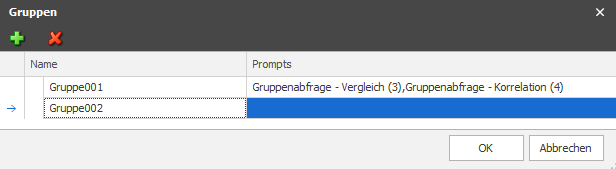
A name for the group query is created in the group settings and the appropriate prompts are added.
Create channels
Two channels are created, one for PV power and one for the outside temperature.
Assign the prompts and groups to the channels in the channel editor

Links
The global output for diagram path is linked to a screen component. The current data is displayed there.
The global output for OpenAI - image output is also linked to an image component. The output of OpenAI is generated there if an image (as csv) is to be created.
Data points for the query are created in the Dynamic folder. The "Analyse data (with prompt)" data points can be triggered with a simple button (or another trigger). data points can be triggered. This sends the predefined query to OpenAI.
The "Analyse data (without prompt)" data point means that you can enter your own question here (e.g. via a text input). This function can be found both in the individual channel and in the group.
Output of the response
The response is output via the global data point "OpenAI - Last response". It is recommended to use the Log window component for display.
If the conversation mode is active, the response is output at the "OpenAI - Total conversation" data point.