The JSON / XML driver is an unVisiblee server component with the ability to query data from a web server.
The JSON or XML data supplied by the web server is displayed in the tree editor in a tree structure. There, individual elements can be selected. The selected elements are then made available as data points in the communication window for further linking.
Data points of the component
Name |
Type |
Function |
|---|---|---|
Query once |
Input |
A query is executed via an on signal at this input. |
Query running |
Output |
Outputs a true if the query is active. |
Query cyclically |
Bidirectional |
Via an on-signal at this input cyclic polling is executed. The waiting time between two queries can be set separately. |
Query cyclic - Pause [s] |
Bidirectional |
Here the input/output of the pause between two cyclic requests takes place. |
Reply as text |
Output |
Here the result of the query is output as text. |
Dynamic |
Folder |
The Dynamic folder shows the outputs for the data elements. Depending on the type, different data points are made available. |
Diagnosis [Text] |
Output |
The status outputs are formatted here. Attention: Diagnosis or debug outputs are only provided for the case of an error. Please use only after consultation with the support team! If used, these can considerably impair the performance of the service. |
Text input [JSON/XML]. |
Input |
Text input for the formats JSON and XML. |
Time stamp |
Output |
The date and time of the last query is displayed here. |
Properties
Name |
|
function |
|---|---|---|
Channels |
|
Here the imported data elements are listed. These then appear as sub-folders in the data point Folder Dynamic. |
Delay between update [s] |
60 |
In the set interval, the data is read from the server. |
Cyclic Update - Autostart |
|
If this parameter is set, the data is cyclically read from the server. |
Channels
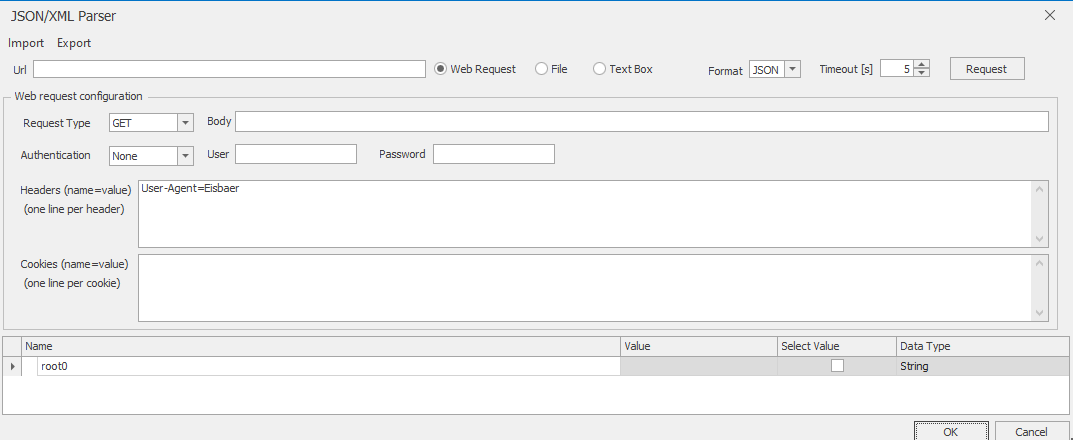
Setting: Web request:
Enter the link to the file to be queried in the "URL" field and set the corresponding data format (JSON or XML). In addition, you have the option to define the query type and, if authentication is required, to store it. After all necessary settings have been made, execute the first actual query to parse the incoming data package. The JSON/XML parser will display the structure of the data according to a tree structure in continuous rows.
Put a tick in the column "Select value" accordingly if you want to take over a data element and output it via a data point at the components. In the column Data type you also select the desired data type. The data type can only be changed if the corresponding data point is not linked. If necessary, the link must be broken before changing the data type.
If the selected data points are text, select "String". If it is a numerical value, select "Double" and for date-time values select the "DateTime" format. For all other cases, select the data type "Object". Finally, the selected entries are displayed in a dynamic folder structure. Created query structures can be saved and restored via the menu items "Import" and "Export".
Default Header = User-Agent=Eisbaer
JSON test URL:
http://echo.jsontest.com/key/value/otherkey/othervalue
http://www.busbaer.de/test/testjson.xml
XML Test-URL:
http://www.busbaer.de/test/test.xml
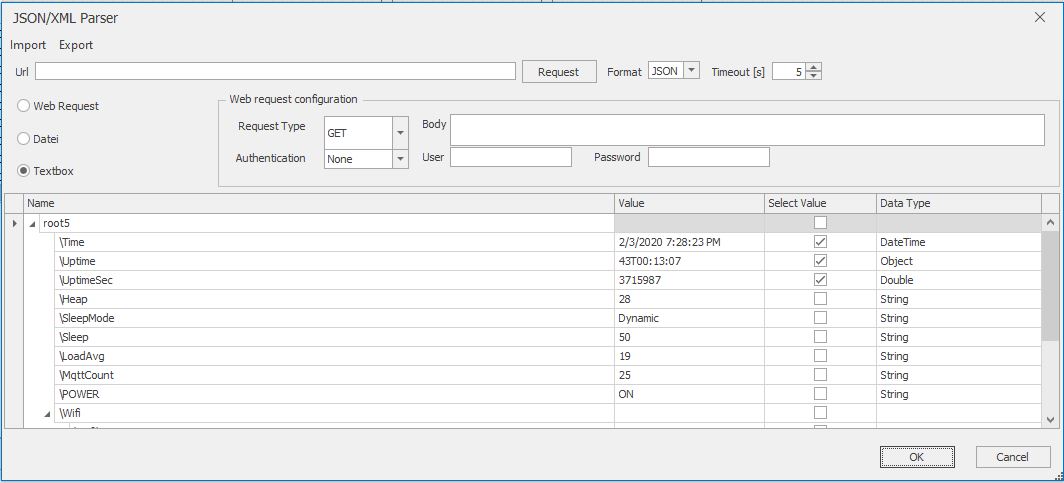
Setting: File:
To query local files, the storage path of the JSON / XML file to be parsed must be entered as the URL. Query type / authentication are of course unnecessary and grayed out accordingly. The parsing and the further steps are carried out as already described under "Settings: Web Request", only that you can also directly transfer the file to be parsed at the communication input "Text input JSON / XML" of the parser.
Setting: Text box:
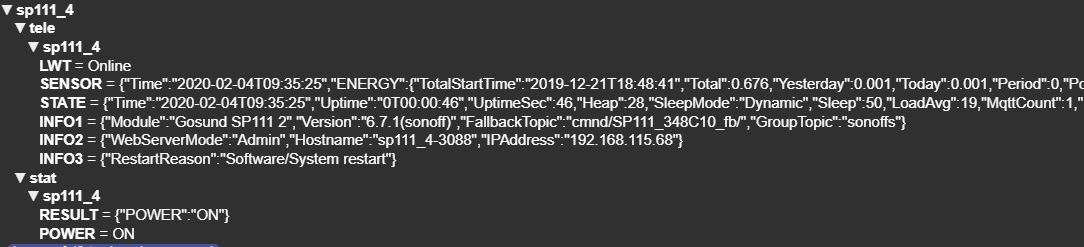
This setting variant works similar to a clipboard and serves as an intermediate link, e.g. between an MQTT broker and the EisBaeren, in which case the topic does not contain a value from the broker, but several pieces of information in a JSON string.
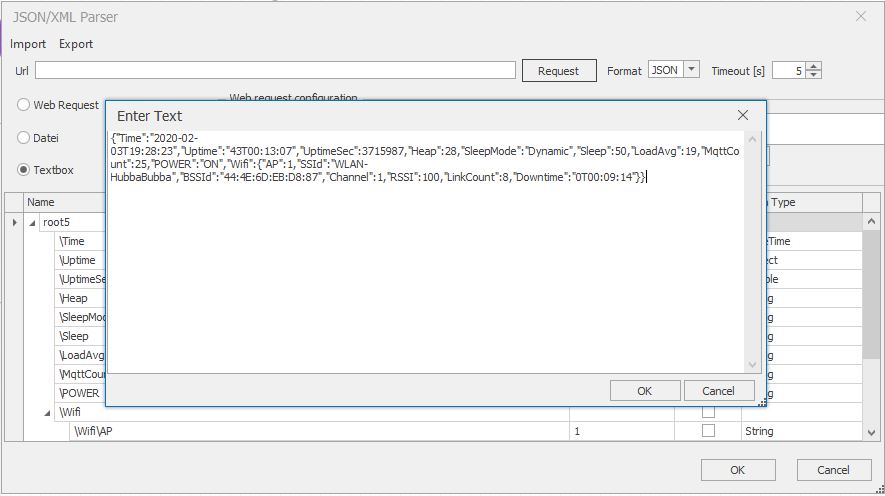
Set the selection to "Textbox" and click on Query - a text window will open in which you can insert the JSON string to be parsed. With OK, the tree structure of the individual data points is built up after the text box has been parsed and the required data types are set. If "Select value" is checked for each entry, the data connection is created dynamically in the communication window after the window is closed. Finally, connect the communication input "Text input JSON / XML" to the relevant topic of the broker, which contains the JSON string in the example mentioned.
Tip:
If you do not receive a response when querying or reading files, this could be due to an incorrect format selection, the JSON / XML content deviates considerably from conformity, the authentication has failed or the query type is incorrect. For a further analysis, if the call should not work, connect the diagnostic output (text) of the parser e.g. with the receipt of a log window in order to recognize any error messages or problems.