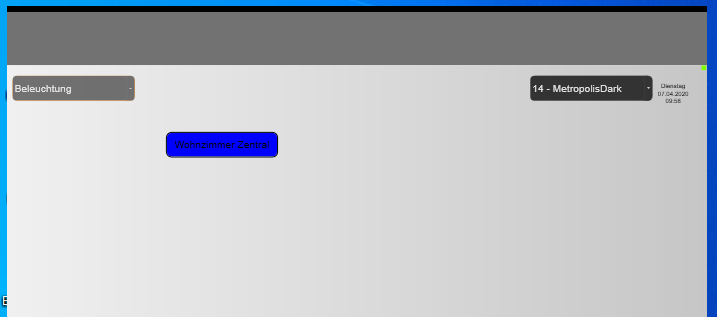
The Windows Tray Mode is a mini-client that can be opened and closed on the Windows desktop via the taskbar.
The control icon is displayed in the notification area next to the clock in the taskbar.
Once started, the EisBaer project is launched with the Clients start-up configuration and the tray icon is displayed in the task bar.
Clicking the tray icon closes the client and clicking it again opens it.
The tray client can be positioned over the black upper border. The current position is saved on exit (right mouse click on tray icon, Alt-X or Alt-F4) and will be reused the next time the client is started.
Tray symbol:
If a graphic with the file name 'DefaultTrayIcon.ico' exists in the EisBaer installation directory, it will be used as a tray icon. Otherwise the default EisBaer Client icon will be displayed.
Settings in the file link / command line
Eisbaer.Client.WindowsApplication.exe /traymode /widthGadget:800 /heightGadget:600
Without the optional width and height specifications, the client starts in tray mode with 1366x768 pixels.
If no command line parameters are passed, the settings in the configuration file apply.
(C:\Users\UserName\AppData\Roaming\Alexander Maier GmbH\EisBaer 3.0\EisbaerClientProgramSettingsV3.config)
<Settings>
...
<Gadget>
<TrayMode>True</TrayMode>
<Height>600</Height>
<Width>800</Width>
<GadgetModeActive>False</GadgetModeActive>
<ImageHorizontal>left</ImageHorizontal>
<ImageVertical>top</ImageVertical>
</Gadget>
...
</Settings>
Without the specifications for width and height the client starts in 'Gadget Mode' with 1366x768 pixels.
User login via command line:
The Windows Gadget Client can be started with user login from the command line.
This must be started with the following call:
"C:\Program Files (x86)\Alexander Maier GmbH\EisBaer SCADA 3.0\Eisbaer.Client.WindowsApplication.exe" /u:user /p:password /ip:IP address /cp:9959 /dp:9960 /gadget /widthGadget:800 /heightGadget:600
Replace "user" with the created user
"password" with the created password (one space for no password)
Replace "IP address" with the IP address of the server
"cp" with the communication port (default 9959), if the parameter is missing the default is used
"dp" with the download port (default 9960), if the parameter is missing the default is used
If /u: and/or /:p are missing, all parameters are ignored and the current settings from the autostart configuration are used.
The following autostart settings are taken over by the Windows client.
Window and scaling menu: Behaviour with the various operating options
Mouse operation |
Description |
Scroll bar active |
must be deactivated, otherwise the zoom function will not work. |
Zoom In (long press) |
The display is enlarged by 50% with each long right mouse click (Zoom In). |
Zoom entire page (double click) |
Display is adjusted to the window size with each double click of the right mouse button (Zoom Out). |
Pan (press and hold) |
The client window is moved by pressing and dragging the mouse pointer |
Touch operation |
Description |
Scroll bar active |
must be deactivated, otherwise the zoom function will not work. |
Zoom In (long press) |
No function with touch operation |
Zoom entire page (double click) |
The display is adapted to the window size with each double touch (Zoom Out). |
Pan (press and hold) |
The client window is moved by pressing and dragging |