Introduction
With the new Aragon integration, EisBaer expands its capabilities by adding a fully local voice control system that operates without any cloud services. Thanks to the collaboration with ProKNX, EisBaer visualization can now be controlled directly by voice – fast, secure, and privacy-compliant.
EisBaer responds to natural voice commands to perform actions such as light control, scene activation, page navigation, or status queries. The integration is based on local communication between Aragon and EisBaer, ensuring that no data ever leaves the local network.
A major advantage:
By connecting to EisBaer, Aragon becomes protocol-agnostic. This means that voice commands are no longer limited to KNX, but can also control systems using BACnet, Modbus, OCPP, energy management, and many other protocols.
As a result, Aragon becomes a universal voice assistant for the entire building automation system – and EisBaer becomes the central platform that connects all systems together.
Commissioning
The commissioning of the Aragon system follows the steps described in the official Aragon User Manual by ProKNX.
Please complete all basic installation and setup procedures – including speech recognition, network connection, room assignment, and microphone testing – as outlined in the manual.
After successful initial setup, Aragon can be connected to EisBaer.
No additional software installation is required – the integration is done via the Aragon component available in EisBaer.
Key Points
•Aragon must be located in the same local network as the EisBaer system.
•In the Aragon configuration, the corresponding communication mode must be activated (see the EisBaer Integration chapter in the Aragon manual).
•Once activated, Aragon sends recognized voice commands (intents) directly to EisBaer, where they are processed and executed.
For more information about device settings, microphone calibration, and language profiles, please refer to the latest Aragon manual available at:
www.proknx.com/downloads
Data points of the component:
Name |
Type |
Type Function |
|---|---|---|
Diagnosis [Text] |
Output |
Error messages are output here. Attention: Diagnostic or debug outputs are only intended for use in the event of an error. Please only use them after consulting the support team! If used, they can significantly impair the performance of the service. |
Dynamic |
Folder |
|
Last request (URL) |
Output |
Output of the last URL that was requested as text. |
Driver On/Off |
Bidirectional |
Switches the driver on or off. |
Driver status |
Output |
An On signal is output if the connection to the server is successful. |
Properties of the component:
Name |
Standard |
Standard Function |
|---|---|---|
Device |
0 |
List of voice commands |
Local IP |
192.168.0.1 |
Enter the local IP address of the EisBaer server. |
Port |
8080 |
Enter the communication port |
user |
eisbaer |
Enter the user name |
password |
eisbaer |
Enter password |
SSL |
|
Activate to establish an encrypted connection. |
Driver on/off |
|
Switches the driver on or off |
In EisBaer, voice commands can be individually created and assigned to the desired functions in the visualization.
Each voice command consists of a zone (room) and a type that determines which kind of function will be executed.
The assignment is done in the Aragon component via the “Voice Commands” input interface.
Here, the room name, function type, and the corresponding data points are defined.
Available types:
Light |
Switch a light on or off. Example: “Turn on the light in the living room.” |
Dimmer |
Dim a light. Allows commands such as “Make it brighter,” “Dim the light to 50%,” or “What is the light level?” |
Blind |
Control blinds or shutters (up/down, positioning). Example: “Set the blinds in the office to 30%.” |
Scene |
Trigger or activate a scene or function. The name entered here also serves as the voice command. |
Heating |
Query and set room temperatures (actual/setpoint). Example: “What’s the temperature in the bedroom?” or “Set the thermostat to 22 degrees.” |
Sensor |
Used to query any value in the system, regardless of origin. |
Aux |
General switching function not interpreted as lighting. Ideal for sockets, equipment, or special functions. Example: “Turn on the fan.” |
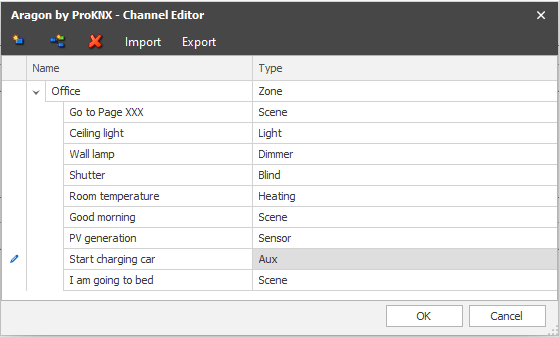
After the EisBaer-Aragon component has been fully configured, the connection must also be established in Aragon Maestro.
To do this, Aragon is accessed via a web browser in order to adjust the gateway settings.
Procedure:
1.Open a web browser and enter the IP address of the Aragon Maestro
(e.g. http://192.168.188.62)
2.In the menu bar, navigate to the “About” page.
3.Under item 4 – Change Gateway, select “EisBaer” from the drop-down list.
4.Then return to the main page and open the section “Gateway Configuration”.
5.Enter the IP address of the EisBaer server.
6.Enter the username and password as specified in the EisBaer component.
Note:
The IP address and login credentials must exactly match the values used in the EisBaer system.
Only then can Aragon correctly transmit recognized voice commands to EisBaer.
After completing the configuration, the connection between Aragon and EisBaer can be verified.
If all settings are correct, the Aragon Maestro will display the gateway status:
•Gateway Configuration
•Connection Status
Both states are indicated by green check marks.
Once these are visible, communication between EisBaer and Aragon is active.
After a successful connection, the Aragon Maestro automatically performs the following steps:
1.It connects to the EisBaer server.
2.It loads the voice commands created in EisBaer.
3.It automatically trains them in the background.
This process usually takes about 20 seconds.
Once the training is complete, Aragon is fully operational and can immediately receive and execute voice commands.
Note:
No manual interaction is required during the training process.
After the automatic synchronization is completed, the system is ready for use.