For the use of this component the .NET-Framework 4.8 is mandatory!
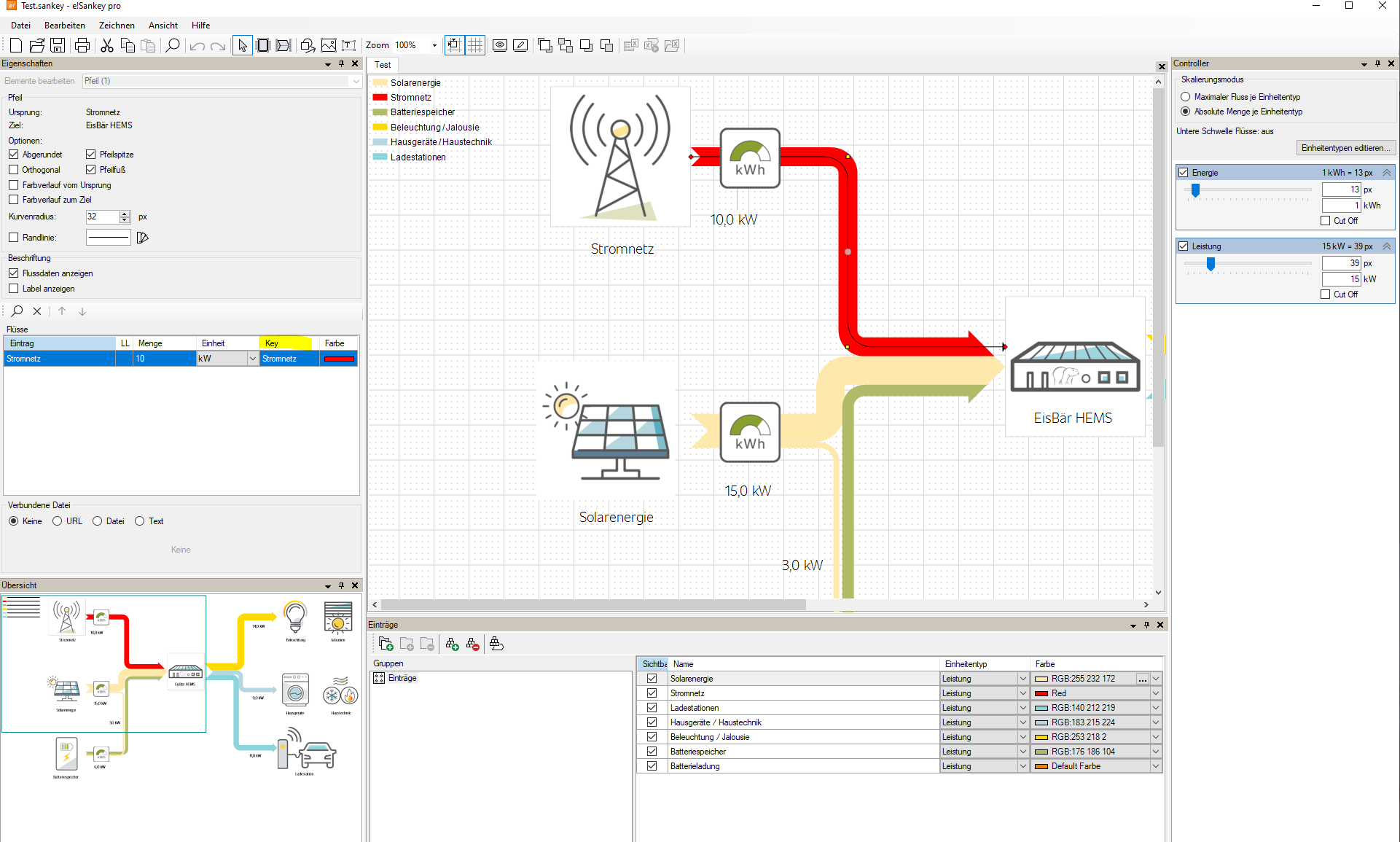
To create a template for displaying a diagram, the e!Sankey-Software is required.
The template must be saved for this purpose and the storage location must be specified in the component. Furthermore, the same variables as in the diagram template must be created in the "Key" column in the channel editor (see below). If this column is not visible, it must be activated under "Edit --> Options --> Advanced --> Show 'Key' field for diagram elements". Via "Edit\Keys" the variables can be exported to the clipboard. Copy the keys from the clipboard via a text editor into a text file and save it as CSV. The CSV file can then be imported in the EisBaer Editor into the channel list of the e!Sankey component.
Use of the eSankey diagrams
1.Insert the eSankey component into the EisBaer project.
2.There is a selection for a diagram template file in the properties of the component. Select the desired template there.
3.Add the data channels that are to be displayed as part of the diagram. To do this, import the "XX_keys.csv" supplied in the folder C:\ProgramData\Alexander Maier GmbH\EisBaer XX\eSankey. These can also be created manually.
4.Once the data channels have been created, the communication objects are displayed in the dynamic folder of the component in the Communication objects window. Please connect the corresponding data points for power there.
Note on display in different application scenarios:
The generated images are stored in the folder "C:\ProgramData\Alexander Maier GmbH\EisBaer 3.0\www" of the EisBaer server.
Local operation only: Data point "Diagram image file (local file)" is linked to the image component. -> EisBaer server and client run on the same machine. No access via network or internet is possible.
Local network: "Publish images" propertydisabled, "Diagram image file (Http(s) URL)" data pointis connected to the image component. -> EisBaer server and client run on different machines or apps in the local network. Access via the local network is possible. No internet access
Internet:Publish Images propertyenabled, data point "Diagram Image File (Diagram Image File (Http(s) URL)" is connected to the image component. -> EisBaer server and client can run on different machines, apps, locally or on the internet. The images are cached on our web server. FTP access to "http://eisbaer-scada.net" must be possible.
Data points of the component
Name |
Type |
Function |
|---|---|---|
Diagnosis [Text] |
Output |
Attention: Diagnostic or debug outputs are only intended for error cases. Please use only with consultation with the support team! If used, these can significantly affect the performance of the service. |
Diagram Image File (Http URL) |
Output |
For external access (EisBaer clients), the URL to the diagram file must be sent to the data point of the image component: http://IP-ADRESSE:8003/Eisbaer.RESTServices/CustomWebsite/sankey_image.png. |
Diagram image file (local file) |
Output |
Output of the local location for the data. This URL can be linked to the image component. The chart will only be displayed if the server and client are running on the same machine. |
Create diagram now |
Input |
A switch edge is used to recreate the chart. |
Dynamic |
Folder |
Listing of the created channels. |
Extended Diagnosis |
Input |
The output of the diagnosis can be extended here with an An value. |
Driver On/Off |
Bidirectional |
Switches the driver On (true) or Off (false). |
Note: Caching must be disabled in the displaying image component.
Properties of the component
Name |
Standard |
Function |
|---|---|---|
Diagram Template File |
|
Path specification for the storage location of the Sankey template file (x.sankey). This is not the storage location for the diagram! An example can be found under: C:\ProgramData\Alexander Maier GmbH\EisBaer 4.0\eSankey
|
Channels |
0 |
Add the data channels that will be displayed as part of the graph. They must be the same variables as were created in the diagram template in the "Key" column. Example: C :\Program Files (x86)\Alexander Maier GmbH\EisBaer SCADA 3.0\eSankeyChannel.csv |
Trigger |
Input Trigger |
Here you can set when the data should be saved. Inputs (selected) --> Trigger on change at selected input Cyclic (interval) --> Trigger automatically after the set time. Inputs and cyclic --> Trigger is triggered both when there is a change at the marked input and after time has elapsed. |
Trigger interval [s] |
60 |
Time setting for the cyclic execution of the code. Only has an effect if cyclical has also been selected under "Trigger". |
Encoding |
|
Selection of the encoding for the CSV generation. |
User-defined encoding |
1252 |
Specify the code page number (see Wikipedia) |
Publish images |
|
If this function is set, the images are published on the web server (http://eisbaer-scada.net/esankey/...). They are then no longer processed with the local Eisbaer server. |
User defined FTP connection |
|
With this activation, the graphics are stored in a user-defined FTP directory. |
Add timestamp to uploaded images |
|
Adds the timestamp to the file name of the graphic. |
User-defined FTP connection |
... |
Entry of the user-defined FTP connection for uploading the graphics. |
URL Base for User Defined Publish |
|
Entry of the URL for user-defined FTP connection from which the graphic is to be downloaded. |
Driver On/Off |
|
Switch the driver on or off. |
Example: