This component can be used to play several images one by one, for example, to simulate an animation.
Please note: Important notes -> Working with graphics
Data points of the component
Name |
Typ |
function |
|---|---|---|
Current Frames per Second |
Output |
Returns the current number of frames per second |
Set Speed |
Input |
Determines the number of images to be displayed per second. A positive value corresponds to the forward speed and a negative value to the reverse speed. |
Mouseover |
Output |
You can use this output to start an event when the mouse moves over the object. |
Visible |
Input |
With an off signal, the component becomes invisible and visible with an on signal. |
Start/Stop Backward |
Input |
Starts the sequence of the images in the reverse order |
Start/Stop Forward |
Input |
Starts the sequence of the images in the order in which they were created. |
Input |
Properties
Name |
Default value |
function |
|---|---|---|
Images |
0 |
The graphics for the animation are defined in the editor. Any number of your own graphics can be inserted into the list. The top graphic (1) is used for the undefined status. This is displayed if the animation has never been started. The graphic (2) is displayed for the Off status. Graphic (3) is displayed first for the Forward animation. All other graphics are divided into the value range. Graphic (3) is displayed last for the Backward animation. |
Value at maximum setting |
10 |
Here, the value is selected at which the maximum forward speed (positive value) is reached. 0 = stop. This limits the "Set speed" input. |
Value at minimum setting |
-10 |
Here, the value is selected at which the maximum speed is reached backwards (negative value). 0 = stop. This limits the "Set speed" input. |
Default Speed [Frames per Secound] |
5 |
Sets the default speed |
Maximum Speed [Frames per Secound] |
20 |
Sets the maximum speed |
Animated Image Editor
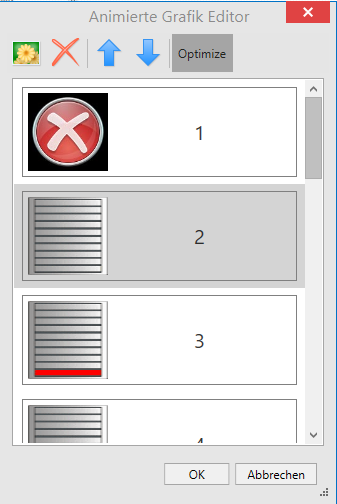
Explanation of the buttons in the ribbon, from left to right:
Function |
Function Description |
|---|---|
Add picture |
Select a new graphic from the graphics library here. This can be a bmp, png or gif graphic, for example. It is also possible to select an animated gif graphic. This is split into its sub-images during the import and displayed. The top graphic (1) is used for the undefined status. This is displayed if the animation has never been started. The graphic (2) is displayed for the Off status. Graphic (3) is displayed first for the Forward animation. All other graphics are divided into the value range. Graphic (3) is displayed last for animation backwards. |
Remove picture |
Deletes the currently selected image from the list. |
Arrow up |
Moves the currently selected image up one position in the list. |
Arrow down |
Moves the currently selected image one position down in the list. |
Optimise |
If this option is active, image files are downsampled during import so that the resolution is adapted to the component size. Without this function, the original resolution of the image is used. Please note here: Important notes --> Working with graphics. |