Payload profiles / device profiles (applies to MQTT client / broker, TTN and LoRBaer device profiles):
The advantage of a payload profile is primarily that if you want to evaluate several topics with the same content (JSON strings) from different sensors/actuators, the profile only has to be defined once, but can be assigned to the different topics for evaluation - this saves a lot of work and thus also time. In addition, it is no longer necessary to parse the topic through the additional component "JSON/XML parser".
In the example, the defined topic: "sp111_1/tele/sp111_1/SENSOR" contains instead of raw data, values or strings, i.e. a JSON string with several values, the content of which is structured as follows: {"Time": "2020-11-11T06:01:52", "ENERGY":{"TotalStartTime": "2020-03-01T00:00:00", "Total":154.219,"Yesterday":0.366,"Today":0.043,"Period":0,"Power":6,"ApparentPower":21,"ReactivePower":20,"Factor":0.30,"Voltage":232,"Current":0.091}}.
In a nicer representation of the JSON string, the hierarchy is a little clearer to be able to reproduce it correctly:
{
"Time":"2020-11-11T06:01:52",
"ENERGY":{
"TotalStartTime":"2020-03-01T00:00:00",
"Total":154.219,
"Yesterday":0.366,
"Today":0.043,
"Period":0,
"Power":6,
"ApparentPower":21,
"ReactivePower":20,
"Factor":0.30,
"Voltage":232,
"Current":0.091
}
}
In the payload profile editor, this hierarchy is reproduced in the same way via the main and sub-entries. It is important that the names of the entries correspond exactly to the JSON content entries and that a unique profile ID is assigned. The main entry thus contains Time and ENERGY, whereby the latter is subdivided into separate subentries (TotalStartTime, Total, etc.). In addition, settings for direction, data type and further subdivisions in the form of arrays, if available, must be made. By clicking OK, this structure is adopted for further use. Various import and export functions are also included, as well as a wizard for automatically generating the profiles directly from a JSON.
Note: When importing JSON, the data type must be checked!
Name |
Description |
|---|---|
Name |
Name of the main and sub entries of the hierarchy |
Profile ID |
Unique profile ID |
Container |
With this selection, a channel becomes a container, which can have further sub-entries. |
Direction |
Setting of the communication direction |
Data type |
The data type of the channel must be set. |
Is Array |
If the data point has more than one piece of information, "Is Array" must be set. |
Number of (Array) Elements |
Specify how much data the array contains. |
Use as trigger |
(for MQTT/LoRBaer) If this option is set, the data is published immediately. Otherwise only when |
Auto trigger when all fields are written |
(with MQTT/LoRBaer) If all data points of a group have received values, the entire group is published. |
Discard field values after trigger |
(with MQTT/LoRBaer) Deletes the value from the transmission protocol so that this must always be reset and can no longer contain old data. |
Factor |
Factors the number with the set value. |
Default Value |
Describes the topic with a default value. |
Output Default Value |
Determines whether the default value is to be used or not. |
In the channel editor of the MQTT client/broker, the respective defined payload profiles can now be assigned to the topic(s). After accepting the new settings, the "Dynamic" folder is automatically updated in the communication window and now reflects 1:1 the data point structure for tapping the actual JSON string. Do not forget to set the topic data type to string when working with payload profiles.
Channel settings (Topics):
The discovery function only works if the connection settings to the MQTT broker have been entered correctly beforehand. Columns marked with (*) can be edited simultaneously via the multi-select function.
Options in the channel editor:
+ |
Add a topic. |
x |
Delete the selected topic. |
Import (CSV) |
Imports a topic list from a CSV file. Existing topics will be deleted! |
Import and Add (CSV) |
Imports a topic list from a CSV file. The imported topics are added to the existing ones. |
Export (CSV) |
The created topics can be exported as a CSV file. There are 3 possibilities: CSV: Exports the created topics. This file can also be imported into the MQTT Broker. CSV with basetopic: If a basetopic was defined in the properties of the component, it is inserted before the topic name. This file can also be imported in the MQTT Broker. Details: This export is for documentation purposes only. |
Collect Topics |
(MQTT client ONLY) With this function topics can be searched and added. |
Import selection |
This function can be used to generate topics based on other driver exports. See Driver Gateway |
Edit Selected Topics |
With this function the topic names can be changed. |
Name |
Function |
|---|---|
Topic |
Structure or topic of the topic, e.g. geaeude/gebaeudeteil/raum/sensor/temperatur/wert. |
Name (*) |
Freely definable name for the topic. |
Data type (*) |
Type of data as it is transmitted/translated from/to the broker. |
To Value (*) |
Default: True (Bool). This column is only valid in connection with data type "Boolean" and is intended for a replacement rule, if e.g. a Topic does not contain or should not contain True, but ON / ON / OPEN / UP / etc.. |
Off Value (*) |
Default: False (Bool). This column is only valid in connection with data type "Boolean" and is intended for a replacement rule, if e.g. a topic does not contain or should not contain False, but OFF / OFF / CLOSE / DOWN / etc. |
Factor (*) |
Factor for numeric values. |
QoS Level (*) |
Setting of the "Quality of Service" level. |
Retain (*) |
If Retain is active, the last value from the client is retained at the broker. If a client or several clients connect to the broker again and have subscribed to this topic, this value is published immediately. |
Publish (*) |
Activates the sending of data to the broker (publish). |
Subscribe (*) |
Activates the receiving of data from the broker (subscribe). |
Profile |
Uses the set profile (see Payload Profiles below). Payload profiles are used if the topic contains a JSON string. The data type of the topic must then be set to String. |
Discovery Feature (Collecting Topics)
The Discovery feature is used to automatically create MQTT topics in the MQTT client. To do this, either an existing broker (connection settings must be configured in advance) or the built-in broker is used.
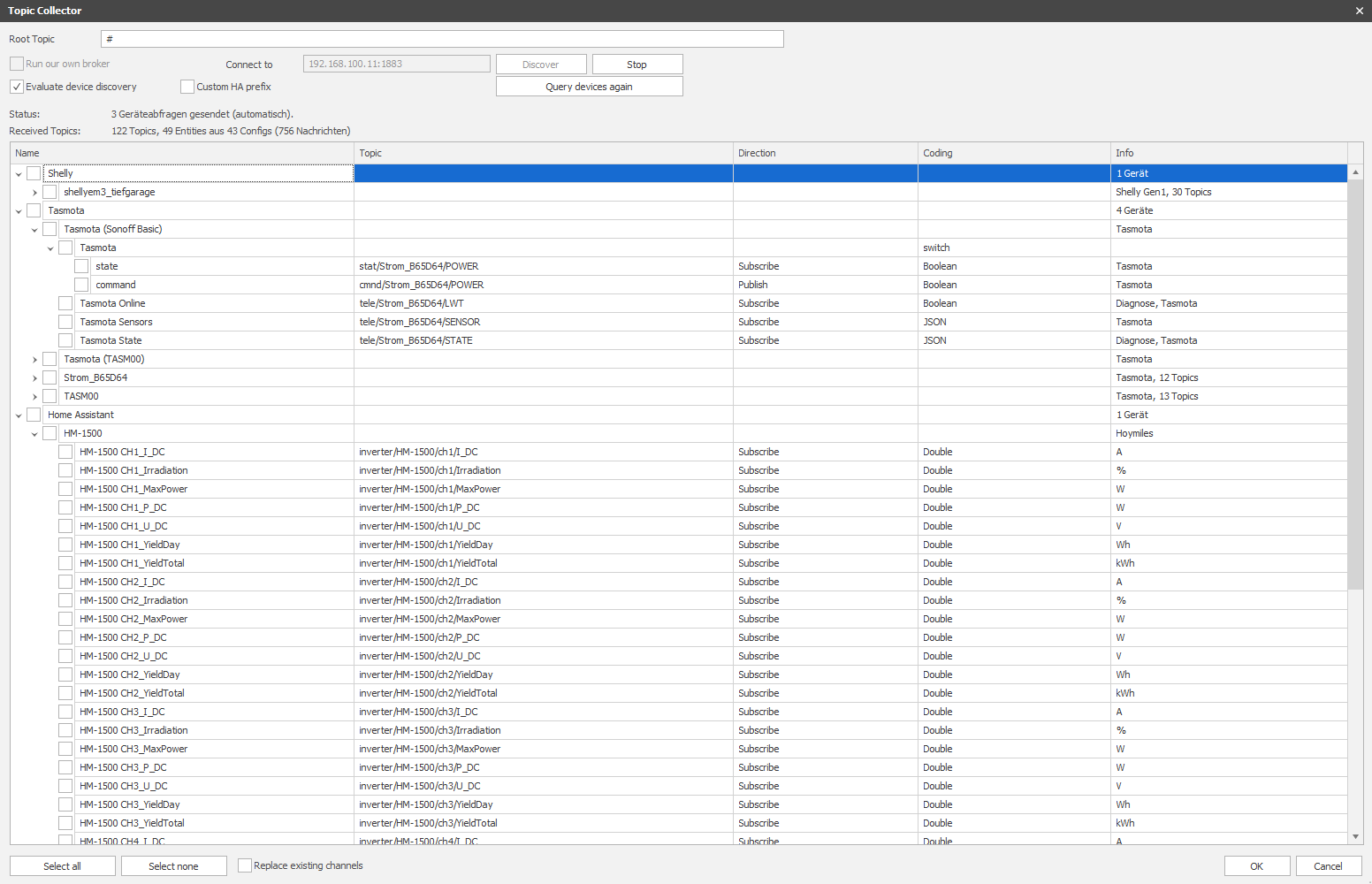
Evaluate Device Discovery
Evaluates the discovery configurations used by devices to announce themselves: the Home Assistant format, Zigbee2MQTT, ESPHome, Shelly BLU gateways, and others, as well as Tasmota’s own format under `tasmota/discovery`.
Topics requiring no configuration at all are still offered
Manufacturer rules name and classify those from Shelly, Tasmota, Zigbee2MQTT, and ESPHome
Replace existing channels
ON: The channel list is replaced by the one imported here.
OFF: The imported channels are added; a topic with an existing channel is skipped.
Profiles are never deleted—an import references an existing profile with the same structure instead of creating a copy.