The LoRBaer - LoRaWAN component allows access to our LoRBaer LoRaWAN Network Server (LNS) for EU868 or US915 frequency bands.
To use our LoRaWAN network server "LoRBaer" a paid account is required, which can be created on our homepage https://www.lorbaer.io. For access to our LoRBaer network server individual account data will be sent to you and you can then create your own LoRa devices and gateways.
Via the EisBaer LoRBaer LoRaWAN component the incoming data can be retrieved and processed at the network server of the own account. Depending on the device specification, uplinks are also possible, e.g. to query a device status, to switch relays or to reset them.
Data points of the component
Name |
Type |
Function |
|---|---|---|
Debug [Text] |
Output |
Error texts are output here. These canbe displayed e.g.with the component "Protocol window" .Attention: Diagnosis or debug outputs are only provided for the case of an error. Please use only after consultation with the support team! If used, these can considerably impair the performance of the service |
Verbose debug |
Input |
(De)Enables the extended debug output. Attention: Diagnosis or Debug - outputs are only provided for the case of error. Please use only after consultation with the support team! If used, these can significantly affect the performance of the service |
Dynamic |
Folder |
This folder contains the dynamic data points from the imported LoRa gateways and devices. |
Last message [Text] |
Output |
Output of the last telegram message from the LoRBaer network server. |
Status (overall) |
Output |
General status display of the active connection. |
Status (API) |
Output |
Status display for the API of the active connection. |
Status (message reception) |
Output |
Status display of message reception of the active connection. |
Driver On/Off |
Bidirectional |
(De)Activating the component |
Uptime |
Output |
Output of the uptime as text in the format dd.HH:mm:ss |
Uptame [s] |
Output |
Output of the uptime as a number in seconds. |
Properties of the component
Name |
Standard |
Function |
|---|---|---|
Connection |
... |
The connection property contains the data of the personal user account, which will be sent after the initial order. The server address is by default: lora.lorbaer.io |
0 |
Existing device profiles can be imported from the personal user account, edited and also created manually. |
|
Devices |
0 |
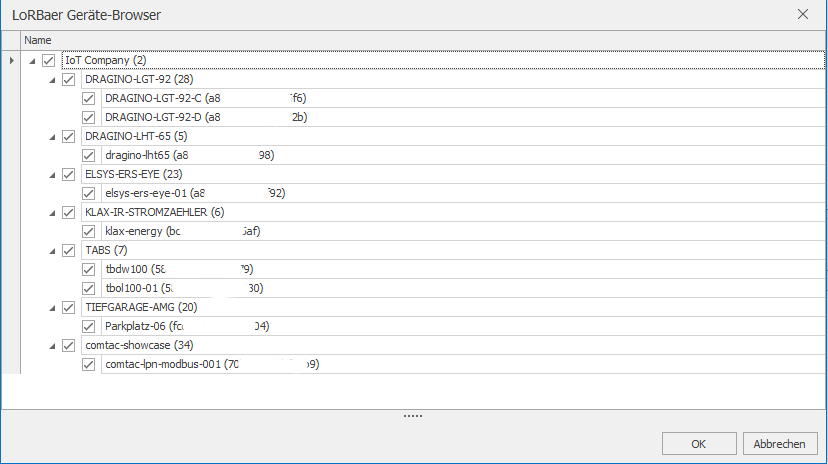
The button "Import from server" opens a separate device browser, which allows to select and import all or only single devices from the account. After accepting with OK, the selected devices are taken over in the list and mapped in the "Dynamic" folder in the "Devices" category. Details on this can be found in the following section under "Devices". |
Gateways |
0 |
The "Import from Server" button opens a separate gateway browser, which makes it possible to select and import all or individual gateways from the account. After accepting with OK, the gateway(s) in the list are taken over and mapped in the folder "Dynamic" in the category "Gateways". At the same time, the global statistics data points for all imported gateways within this folder are also created. Details on this can be found in the following section under "Gateways". |
Driver On/Off |
|
(De)activating the component. |
Connection:
Preset |
Selection for transmission frequency European/American |
Server |
Default: lora.lorbaer.io |
Port (REST API) |
Default: 8080 |
Port (MQTT) |
Default: 1883 |
User (E-Mail) |
Email address used when creating the account. |
Password |
Password sent after account creation. |
Timeout |
Default: 2 seconds |
Test |
This button is used to test the connection to the server. |
Gateways:
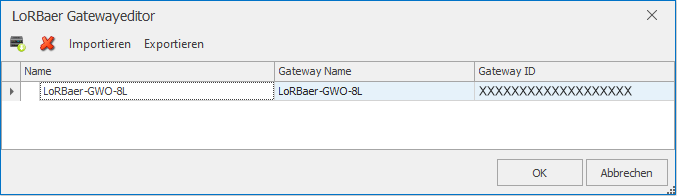
After the gateway browser has opened, the organization's gateways can be selected and imported using the "Import from server" icon. The name of the gateway can be changed later - the gateway name and ID cannot be changed, as these were clearly created in the LoRBaer server.
Device Browser & Device Editor:
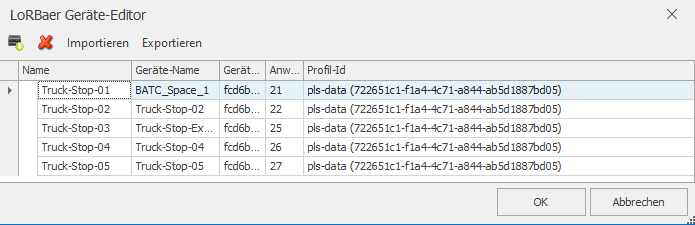
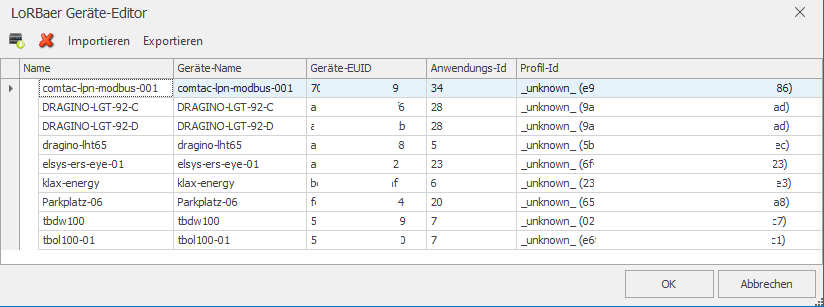
As with the import of gateways, the same function is also provided for devices. Via the icon "Import from server", all or individual devices can be imported from the LoRBaer server of the organisation via the device browser. Here, too, the names of the devices can be adjusted again. All other fields, except for the profile ID, cannot be changed. The profile ID can be imported once from the server via the device profile editor or own profiles can be created. As long as no unique profile has been assigned to the device, it is marked with_unknown in the profile ID.
Device profiles:
Via the device profiles, the values that have been stored in the decoder of the corresponding device or device group in the LoRBaer server can be integrated directly. Via the import, the created device profiles are loaded from the LoRBaer server account and can then be supplemented with the decoder values that are required. Make sure that the data fields are written correctly.
For each device group it is thus possible to create a profile including the data fields once and finally assign it to the devices in the device editor. For each device, the corresponding data connections are automatically created in the dynamic "Devices" folder in the communication and data point windows.

In the device editor, the created device profiles can be quickly and easily assigned in the "Profile ID" column - if there are a large number of identical devices in a device group, this new option saves a lot of work and time. An automatic readout of the decoder is unfortunately not possible, as there are a lot of devices which, depending on the LoRa port setting, output different values on the data fields or which are too complex and too extensive to automatically integrate this into profiles.