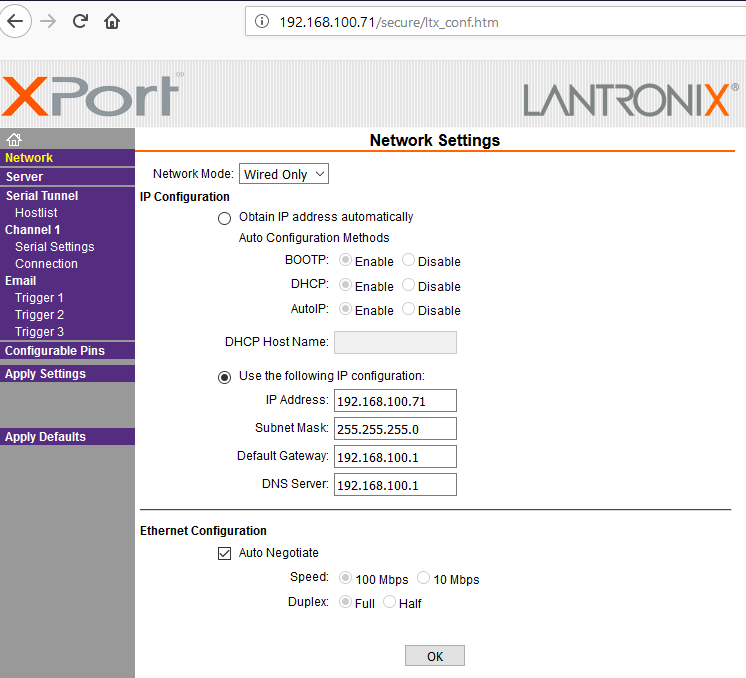
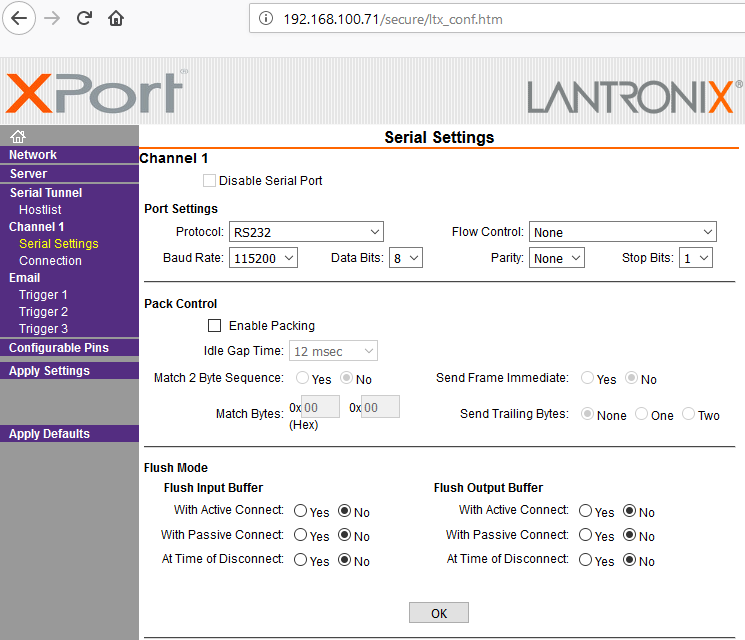
Settings in the modem itself:
Delivery status:
IP-Address 192.168.1.100
Subnet: 255.255.255.0
Port: 10001
Username / password remains empty. Only confirm with OK.
1.Make sure that the set IP address of the LAN modem "matches" your network.
2.Please check, if in the LAN-Modem under "Connection / Common Options" the "Telnet Com Port Cntrl" is set to "Disable".
3.Set the BAUD rate to 115200!
Installation of the "COM-Port Redirector"
1.Please download from the Lantronix homepage, the most recent for your operating system "Redirector" and install it please, taking into account the hints displayed.
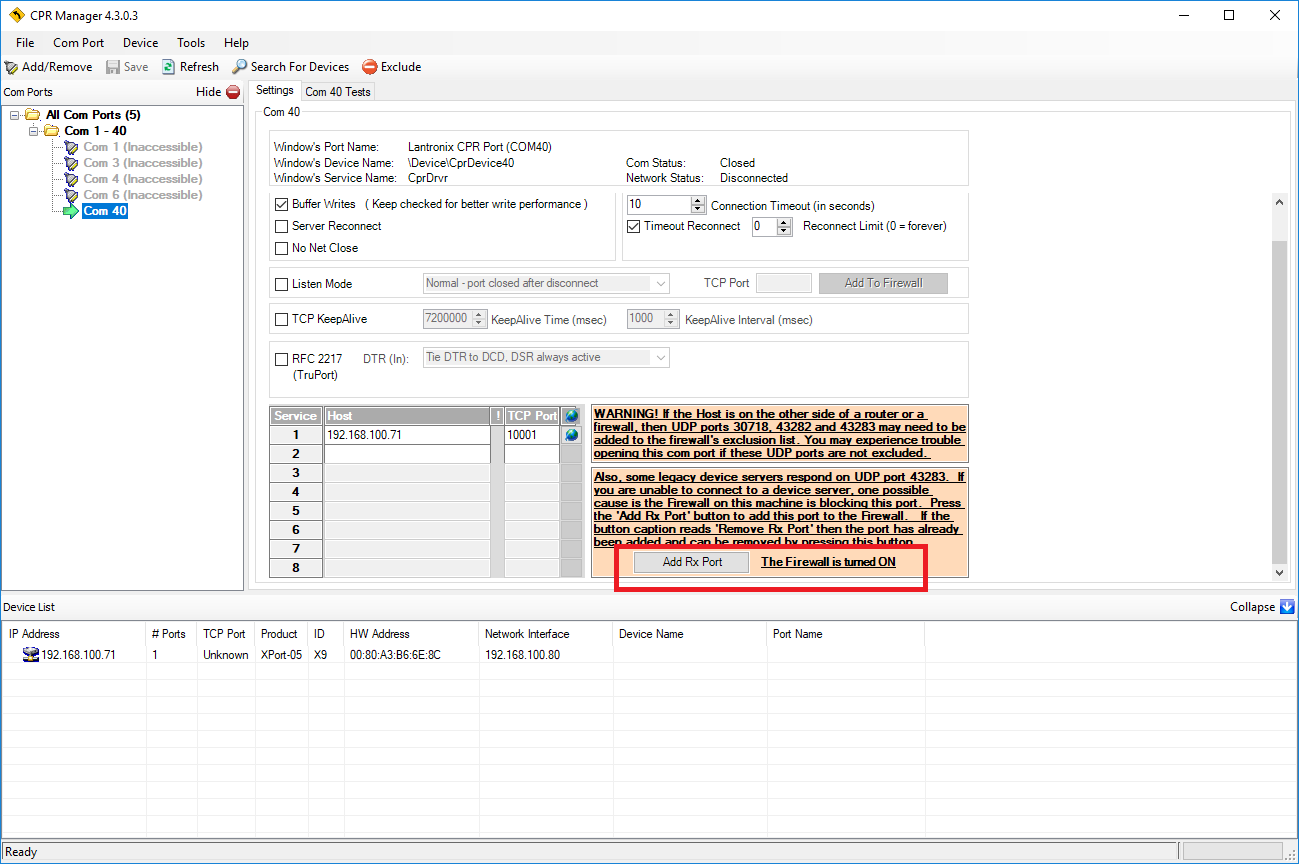
2.Start the "COM Port Redirector" (CPR Manager).
3.Then press the button "Search for Devices".
4.The LAN modem should then be listed with its IP in the lower part of the window.
Requirements:
The following items are required to run CPR:
x86 (32bit): Windows XP, 2003 Server, Vista, 7, 8, and 2008 Server
x64 (64bit): Windows Vista, 7, 8, and 2008 Server
Microsoft .NET Framework v4.0 (For CprManager.exe and CprMonitor.exe only)
30MB free hard drive space.
Device Servers must have firmware version 6.5.0.6 or greater to use RFC2217 (TruPort) capability.
Firewall:
The "Internet Connection Firewall" must be disabled, or else UDP Ports 30718, 43282, 43283 must be available. Otherwise, you will not be able to detect or communicate with any devices on the network.
To configure the firewall, go to the Control Panel, go to Network Settings, select the corresponding network adapter, choose Properties, and go to the Advanced tab. You may need to allow these ports access through the corporate firewall as well.
For most current Lantronix device servers, only port 30718 must be added as an Exception. If you are using the CPR with legacy device servers such as the MSSs, add exceptions for 43282 and 43283.
If the connection is between two different sites you may also need to allow these ports access through the corporate firewall.
1.Then click on the "Add / Remove COM Ports" button and select a COM port that is not yet occupied by you (for example, port 40).
2.Then press the "OK" button. Then please right-click on the LAN-Modem under Device-List and select "Add to settings".
3.Add the RX port to the firewall. See the screenshot.
4.Then press the "Save" button and confirm with "Yes".
5. To check the settings, you can test the connection in the second tab.
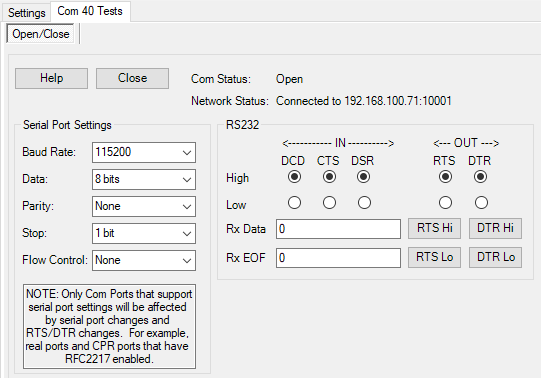
The device is now ready for connection with the EisBaer. The SMS driver must then also be used to enter the port configured here.