The macro panel is used to create function blocks. Only the data points of the macro panel are displayed in the editor. And only these have to be linked. Only components within the panel or its channels can be linked when the edit mode is active.
Creating a macro:
1.Creating the macro panel in the editor (editing mode is active)
2.Creating the channels / components / links
3.Finally, right-click on the panel -> Exit editing mode and save
4.In order for the macro panel to be displayed in the component list, the EisBaer editor must be restarted. For this there is then the new category "macros".
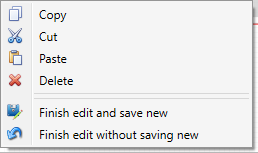
A macro has now been created. Storage path: C:\Users\UserName\Documents\Alexander Maier GmbH\EisBaer 3.0\Macros.
In addition, the created macro is displayed as a component in the EisBaer component list. It is possible to change the macro via right click --> edit mode.
After saving the changes, a new macro will be created and will be available again as a component after the editor restart.
Note: If the macro panel is copied, "Create new nets" must be selected. Otherwise the internal nets will also be lost.
Data points of the component
Name |
Type |
Function |
|---|---|---|
Dynamic |
Folder |
Contains the data points created under "Channels". |
Mouseover |
Output |
Sends out an On signal, if you hover over the component with the mouse pointer. |
Input |
||
Visible |
Input |
If this input is not used, the component is always visible. The component can be made invisible with an off signal on this datapoint and visible with an on-signal on this data point. |
Properties of the component
Name |
|
Function |
|---|---|---|
Channel |
0 |
Here, the channels for the component are created. The type of channel (input, output and bidirectional) serves only as an editing aid and has no influence on the communication direction. |
Password |
* |
A password can be used to protect the processing of the component. The editing mode will then be unlocked after password entry. |