With this driver it is possible to access POWERSHADES devices (motorized shading control).
Data points of the component
Name |
Type |
function |
|---|---|---|
Debug [Text] |
Output |
Error texts are output here. These may e.g. with the "Log window" component. Attention: Diagnostics or debug outputs are only intended for the case of an error. Please use only after consultation with the support team! These may significantly affect the performance of the service when used |
Debug verbose |
Input |
(DE) Enables extended debug output. Attention: Diagnostics or debug outputs are only intended for the case of an error. Please use only after consultation with the support team! These may significantly affect the performance of the service when used |
Dynamic |
Folder |
In this folder, the dynamic data points are created for each group and each shade. |
Gateway Serial |
Output |
Output the serial number of the connected gateway. |
Driver On/Off |
Bidirectional |
(DE) Activate the component |
Driver State |
Output |
Returns the current connection status as an on / off signal. |
Dynamic Data points of the single shade
Name |
Type |
function |
|---|---|---|
Down |
Input |
The Shade is shut down with any command. |
Up |
Input |
With any command, the shade is raised. |
Up/Down |
Input |
With a changing command (true = ab and false = up) the shade is moved up or down. |
Battery voltage [V] |
Output |
Output of battery voltage in volts. |
Paring - Activate Feedback |
Input |
Activate to get a feedback of a Shade. |
Paring - Pair |
Input |
Connects a shade to the gateway. |
Paring - Un-Pair |
Input |
Resolves the connection of a shade from the gateway. |
Position [%] |
Bidirectional |
Position in the value range between 0 and 100. Here the value can be sent and received. |
Position (0-255) |
Bidirectional |
Position in the value range between 0 and 255. Here the value can be sent and received. |
Stop |
Input |
With any command, the shade is stopped. |
Temperature [°C] |
Output |
Output of the measured temperature at the shade. (Product specific) |
Dynamic Data points of the group
Name |
Type |
function |
|---|---|---|
Down |
Input |
With any command all shades of the group are shut down. |
Up |
Input |
With any command all shades of the group are driven up. |
Up/Down |
Input |
With a changing command (true = ab and false = on) all shades of the group are driven up or down. |
Position [%] |
Input |
Position all shades of the group approach by means of value between 0 and 100. |
Position (0-255) |
Input |
Position all shades of the group approach by means of value between 0 and 255. |
Stop |
Input |
With any command all shades of the group are stopped. |
Properties
Name |
Standard |
function |
|---|---|---|
Channels |
0 |
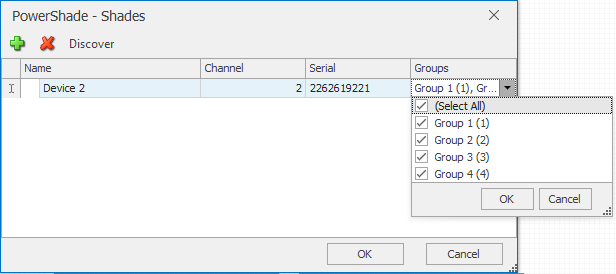
Here, either the devices are imported from the gateway (search) or devices added (+). If shades are removed here, they are also deleted on the gateway. |
Groups |
0 |
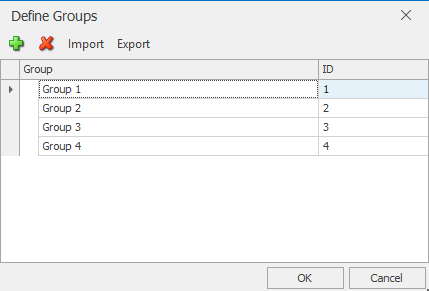
If several shades are to be grouped, the groups can be created here. The assignment of the shades to the groups is done in the channel editor (see picture below). |
IP Address (local) |
0.0.0.0 |
Enter the local IP address of the EisBaer server. |
IP Address (remote) |
0.0.0.0 |
Here the IP address of the POWERSHADE gateway is entered. When using an IP scanner, the gateway will be displayed as "Wideband Labs". |
Port (remote) |
42 |
Setting for the communication port. |
Update intervall [s] |
10 |
Setting for the cyclical query of the position. |
Command delay [ms] |
200 |
Minimum wait time between multiple commands in milliseconds. |
Driver On/Off |
|
(DE) Activate the component |
Adding a Shade (Drive):
1.Setting IP addresses (A fixed IP address must be set in the Powershade RF Gateway)
2.Open channel editor
3.Press green plus (Add)
4.In the new window select a channel number (1-30). Already assigned numbers are no longer displayed.
5.Press and hold the connect button on the shade for 2 seconds until the motor starts and beeps once.
6.Within 10 seconds press the Connect button in the EisBaer.
7.After successful addition, the Shade shakes twice and beeps three times
8.The channel list shows the learned devices.
ATTENTION: There must be no entries with identical serial numbers, otherwise malfunctions will occur.
9.For group assignment, the groups are created in the group editor and assigned in the channel editor.