An MQTT client is used in server 1 (master) and an MQTT broker in server 2 (slave).
ATTENTION: To test in the EisBaer Editor, it must be started as administrator.
For the synchronization to work, the calendars or scenarios must have identical channels. Since the program works internally with IDs, we recommend copying the project after creating the calendars or scenarios. It is also possible to export and import the components as ScadaComp. In addition, there are export and import functions for the calendar to exchange the channel settings in the channel editor. For the scenarios, export and import is possible in the scenario editor.
If "export on change" is activated, the changes are sent to the other server each time the calendar or the scene is changed and imported into the calendar and the scene there.
The IP address of the server 2 is entered in the MQTT client of server 1.

The data points are connected to the XML text import and output data points of the calendar and the scene.
The datapoint name contains output or import as appropriate.
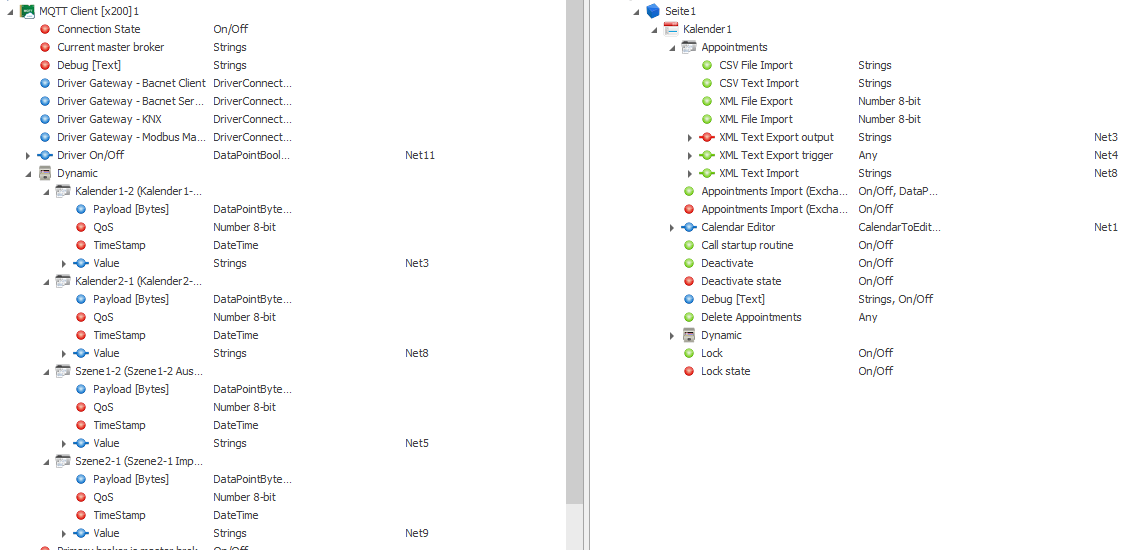
Activate the property "Export appointments on change" / "Export scenes on change".
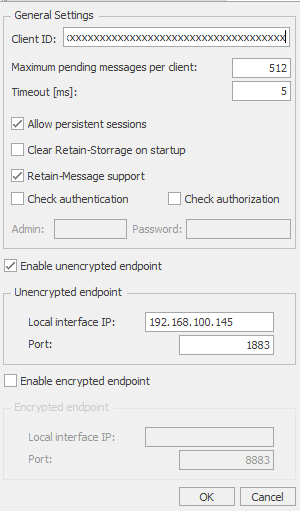
The local IP address of server 2 is set in the MQTT Broker .
ATTENTION: The set port (1883) must be released in the firewall.
In the channel editor, send and receive channels are created for each component to be synchronized.
In the example, there is a calendar and a scene that are to be synchronized in both directions.

The data points are connected to the XML text import and output data points of the calendar and the scene.
The datapoint name contains output or import as appropriate.
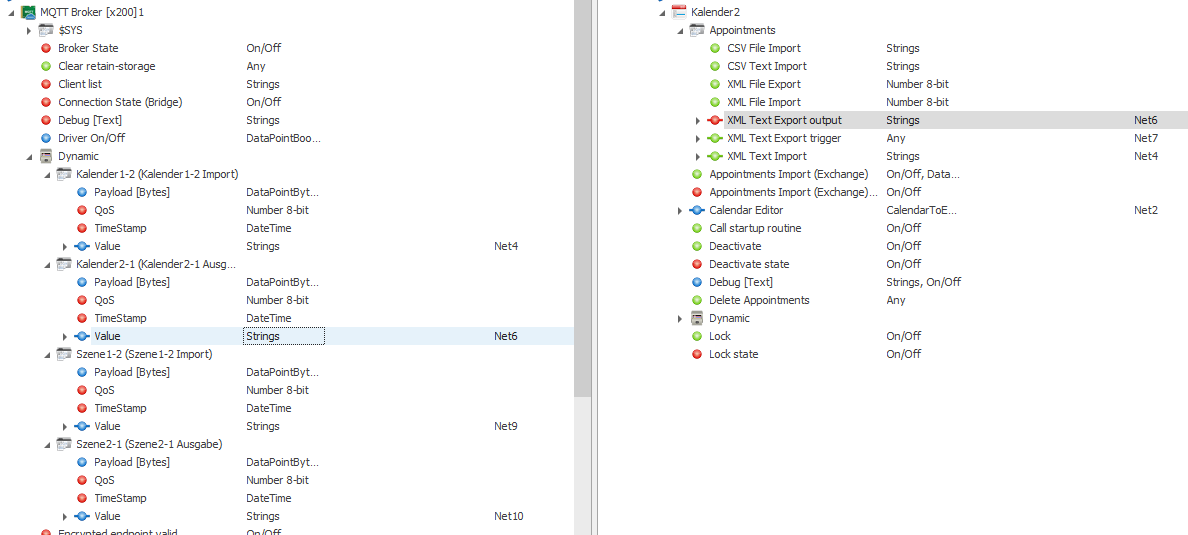
Activate the property "Export appointments on change" / "Export scenes on change".