To start up the system, the following essential steps must be performed:
Editor
Create a solution and a project in the editor
- Transfer the solution folder to server PC (\ Documents \ Alexander Maier GmbH \ EisBaer \ project data ...). During the initial start of the server, the project data must be copied manually to the server PC . After the project is running on the server, you can exchange project data via Project Up/Download
Server
Open Server Configuratione Console
- Set the IP address. If only one client is to be operated on the same PC, the local address 127.0.0.1 (default) can be used. It is then not possible to access the EisBaer server PC via the network with an EisBaer client.
Note: It is important to assign a fixed IP addresstothe server PC in the Windows network settings . Automatically assigned addresses may lead to a non-functioning system after a system restart.
- Select folder and project. The solutions should be stored in the user's Documents folder under "Alexander Maier GmbH". The solution must be in a local folder because the EisBar Server service has no rights to access network drives.
- If the parameter "Save and load system state" is activated, all network states will be restored when the project is started. These were automatically saved when the server was last shut down.
- Connect the USB license dongle to the server PC.
Note: For virtual environments, note the notes in the chapter USB Dongle Server.
- Stop service and start again
- If everything is OK,"Project loaded","Server started" and"License valid!" are displayed. If one of the 3 displays is not OK, the polar bear service does not run correctly.
- Project loading status: Projectnot loaded. Project not loaded.Map file not found. Project not found in the specified Windows folder. It has been deleted or moved.
-"Server Status" indicates whether the EisBaer service is running.
| - License: License invalid is displayed in the following cases: |
| - no dongle plugged in or detected, can be checked via "Show dongle" - Windows energy saving settings must be deactivated, USB dongle fix must have been executed. |
| - Dongle license is not installed - Use the button "Download-Install License" or "Install License manually" to install the dongle license file(Eisbaer.EisD) from the CD enclosed with the dongle. |
| - License of the dongle is too small - Check the license size via "Show dongle" and compare it with the required license size of the project. This is displayed in the editor, in the start ribbon. See also Licensing - Buy Polar Bear Project License Upgrade. |
| - License is for a different polar bear version - Buy Polar Bear Dongle Update. |
| If the license is invalid, the polar bear service runs for 30 minutes and is then terminated (demo mode). After several starts in demo mode, starting the polar bear service is blocked for one day. |
| Messages related to the EisBaer SCADA Server are stored in the Windows Event Viewer under Windows Logs\Application. EisbaerServerWindowsService is used as the source. |
- Close Server Configuration Console (this is not needed for operation)
Note: After each change to the solution, the service must be restarted for the changes to become active in the server! With a project upload from the editor this happens automatically.
Client
Start the Client
On start up the client will attempt to connect to the EisBaer server. If it fails a red bar at the bottom of the client window will inform you. The client attempts up to 40 times to connect to the server . The connection attempt can be canceled at any time.
Open File (Alt-O) opens the server connection window. Via the button "Search server" the search for available servers starts. All running servers are listed. The search works only in the same network segment and not over other network segments, VPN connections or the Internet.
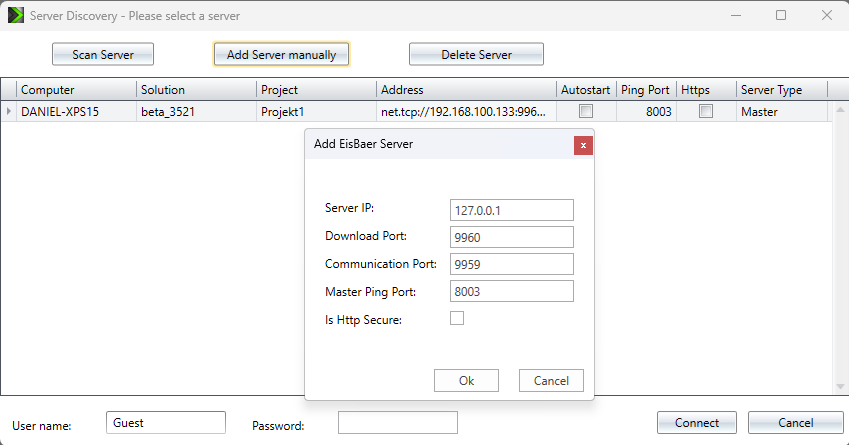
The IP address, port addresses and Http Secure settings of the server must be set.
By default as follows:
Download Port: 9960
Communication Port: 9959
Master Ping Port: 8003
- The marked server entry is deleted with Delete server.
- If the Autostart checkbox is ticked, this server will be used automatically the next time the client is started.
- Select a line and "Connect" to connect to the desired server and load the project.
- If necessary, change the user name and enter the password if these have been changed in the editor.
- In the Server Type column, it is possible to set the settings for master/slave operation. If only one server is used, Master must be set here. Further information on this can be found in the Master/slave operation chapter.
The portal server connection is described in the Portal server chapter .