With the TESLA component it is possible, in connection with a Tesla account in which at least one vehicle is located, to receive current data from the vehicle and also to send commands.
If this component is created, it counts like 200 components.
Data points of the component
Name |
Type |
function |
|---|---|---|
Single request |
Input |
Triggers a one-time query of the vehicle data |
Cyclic request - autostart |
Bidirectional |
An on / off command can be used to start / stop the cyclic polling of the vehicle data. |
Cyclic request - delay [s] |
Bidirectional |
Here the cycle time of the query can be set. |
Response [Text] |
Output |
Output of the feedback as text |
Diagnosis [Text] |
Output |
The diagnostic information is displayed there, linked to the [Signal] input of the log window. |
Dynamic |
Folder |
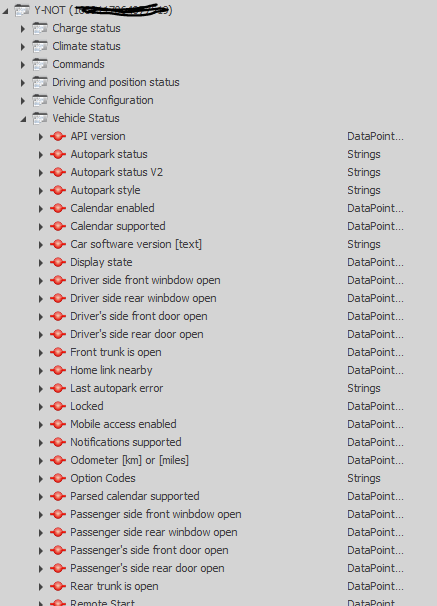
Contains the vehicle specific data points |
Token Refresh - generate login URL |
Input |
Trigger to generate the login URL |
Token Refresh - Login URL |
Output |
Output of the login URL as a string |
Token Refresh - URL after Login |
Input |
Transfer of the URL after login in the TESLA account |
Token Refresh failed |
Output |
Output message if token refresh did not work (wrong URL, server access not possible, etc.) |
Driver On/Off |
Bidirectional |
Driver on or off. |
Properties
Name |
Standard |
function |
|---|---|---|
Connection Settings |
|
Enter the TESLA account data, the redirect URL and the access/refresh tokens. |
Parkservice - PIN |
|
Entry for the Tesla Valet Parking - PIN |
Timeout [s] |
5 |
Setting for the maximum waiting time until a timeout is detected. |
Distance Unit |
Kilometer |
Switch between miles and kilometers |
Vehicles |
0 |
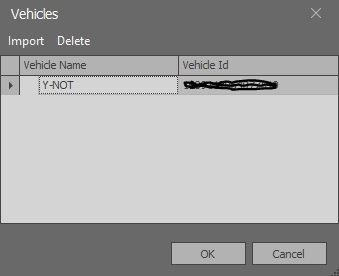
Imports the vehicle(s) |
Cyclic request - autostart |
gesetzt |
Setting for cyclical polling of the vehicle data. |
Cyclic request - delay [s] |
60 |
Cycle time of the query |
Retrigger all SPs - [min] |
60 |
Update interval for all possible vehicle data. Here, the values are reissued at the data points |
Driver On/Off |
|
Driver on or off. |
Brief instructions for storing the tokens in the TESLA component and the steps for establishing a connection to the vehicle:
Click the "Create and copy login URL" button under "Connection settings" in the TESLA component.
The actual login data (user/password) does not necessarily have to be entered for this. Open a current browser such as Microsoft Edge, Chrome or e.g. Firefox and paste the URL generated from the component from the clipboard into the address line of the browser. You will now be redirected directly to the TESLA login page. If necessary, the login data for the account must now be entered in the dialog of the website. Shortly after, a "Page not found" page is displayed - which is perfectly fine. However, the URL in the address bar has changed and must now be completely copied from it.
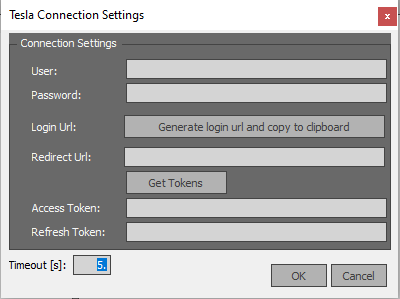
Now insert this URL in the component under "Redirect URL" and then click on the "Generate Tokens" button. After a short moment - if the URL works or access is active - the tokens are automatically entered in AccessToken and RefreshToken. After this process close the window with OK and start the import in the properties under vehicles. After importing at least one vehicle, the data connections are listed according to individual categories under a dynamic folder in the communication window.
Notice:
If token generation via the URL does not work, smartphone apps such as Auth for Tesla (iOS), etc. or websites (see below) can alternatively be used for token generation.
The Access and RefreshToken must then be manually transferred to the editor. Retriggering the method described above is additionally possible via data ports.
Web pages (token generators):
https://tesla-info.com/tesla-token.php
https://teslatokengenerator.com/en