With the invisible server component "Directory Mirroring FTP" it is possible to backup any directories of the EisBaer server computer as well as e.g. USB sticks which are plugged into the computer to a remote FTP server.
Basically, the backup of the running EisBaer project including all its data, such as the actual project including databases, camera images, log files, as well as all other files belonging to the visualization project, should be seen as the main purpose for using the component - a point that is often neglected.
The remote terminal can be located in the local network (file server, NAS, etc.), directly on the Internet (web server) or at a remote location connected to the Internet. In the current versions, additional encryption options have been added - such as FTP(S) with explicit or implicit TLS, as well as SFTP (SSH-FTP). In the directory editor of the component any directories to be backed up can be specified. As an additional option, it is possible to cache folders to be backed up locally on the computer, e.g. to transfer files that are currently being accessed. This local copy can be automatically deleted after a transfer or it can remain in place. When using this option, make sure that sufficient memory space is available. The update interval per backup job can be set between 1 - 168 hours and you can specify whether the backup should start immediately when the EisBaer server is started or only at the set interval, e.g. to avoid unnecessarily loading the computer when EisBaer starts up for large projects. If several directories are selected for FTP backup, the backup will be processed sequentially. It is now also possible to pack files or directories as a ZIP file before transferring and to include or exclude desired subfolders and files (file name and/or extensions) from selected directories. The amount of data to be transferred can thus be further reduced or optimised.
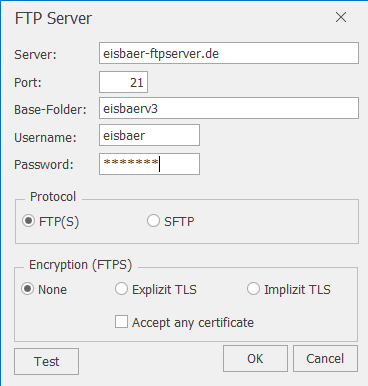
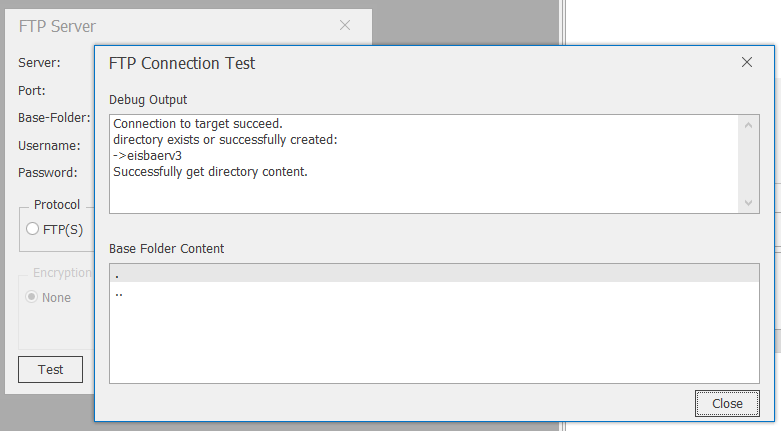
It is also possible to test whether the credentials for the FTP server have been entered correctly in the component properties. If the credentials or the FTP address (IP/name/domain) are not correct, after the check period - please wait a little - another window will be displayed which will provide appropriate information. If the correct information has been entered, a new window will also appear shortly afterwards to confirm access and to display the directory for this FTP user, depending on the directory settings.
Data points of the component
Name |
Type |
Function |
|---|---|---|
Update |
Input |
An on signal at this input causes a mirroring to be executed immediately. |
Cyclic Update |
Bidirectional |
Via an on-signal at this input, mirroring is performed cyclically. The waiting time between two mirrorings can be set separately. |
Update interval [h] |
Bidirectional |
Here the input/output of the pause between two cyclic requests takes place. |
Current file |
Output |
Output of the current file, which is mirrored. |
Clear file cache |
Input |
An on signal at this input clears the file cache and re-mirrors the data to the target. Otherwise, only new and changed files are transferred. |
Debug [Text] |
Output |
The status outputs are formatted as text here. The output is used for diagnosis in case of malfunction. Attention: Diagnosis or debug outputs are only provided for the case of error. Please use only after consultation with the support team! If used, these can considerably impair the performance of the service. |
Driver On/Off |
Bidirectional |
(De)activate the component. |
Extended diagnostics |
Input |
Via this additional input, the output "Diagnostics [Text]" allows a detailed output. |
Dynamic |
Folder |
In the folder "Dynamic" the data points of the directories are displayed. At the outputs it is displayed at each check which of the files in the directory have been changed and are mirrored. |
Statistics |
Folder |
see below |
Status |
Folder |
see below |
Cancel uploads |
Input |
An on or off command at this input cancels the current mirroring. |
Connection status |
Output |
Outputs the current connection status to the target system as an on/off signal. |
Subfolder - Statistics (data points):
The Statistics folder contains data points for further control and analysis functions
Name |
Type |
Function |
|---|---|---|
Total - Number of uploaded files |
Output |
Output of the number of uploaded files. |
Total - Number of different files |
Output |
Output of the number of different files. |
Total - amount of data [MB] |
Output |
Output of the data volume in megabyte [MB]. |
Total - Reset statistics |
Input |
Reset all statistical values. |
Last synchronization - number of files |
Output |
Output the number of synchronized files from the last mirroring. |
Last Synchronization - Amount of data [MB] |
Output |
Output the amount of data in megabytes [MB] of the synchronized files from the last mirror. |
Last Synchronization - Duration |
Output |
Output of the duration of the last mirroring as text in 00h:00m:00s. |
Last Synchronization - Successful [%]. |
Output |
Output, how many % of the files were uploaded successfully. |
Last Synchronization - Error [%] |
Output |
Output how many % of the files were not uploaded. |
Subfolders - Status (data points):
The folder Status contains further data points for status messages during mirroring
Name |
Type |
Function |
|---|---|---|
Error |
Output |
The output is set to On when an error occurs during the mirroring process. |
Ready |
Output |
The output is set to On when the mirroring operation completes successfully. |
Progress [%] (all directories) |
Output |
The output shows the progress of the mirroring process (all files/directories) as a value in percent. |
Progress Info (all directories) |
Output |
The output shows the progress of the mirroring process (all files/directories) as text (e.g. 112/2500). |
Upload Progress [%] (current directory) |
Output |
The output shows the progress of the upload (of the current directory/channel) as a value in percent. |
Upload progress info (current directory) |
Output |
The output shows the progress of the upload (of the current directory/channel) as text (e.g. 50/150). |
Upload in progress (current directory) |
Output |
The output shows the progress of the upload (of the current directory/channel) as value ON/OFF. |
In progress |
Output |
The output is set to On while the mirroring process is in progress. |
Copy Progress [%] (current directory) |
Output |
The output shows the copy progress (of the current directory/channel) as a value in percent. |
Copy Progress Info (current directory) |
Output |
The output shows the progress of copying (of the current directory/channel) as text (e.g. 50/150). |
Copy in progress (current directory) |
Output |
The output shows the progress of copying (of the current directory/channel) as value ON/OFF. |
Next synchronization |
Output |
Duration until next mirroring as text output in format: 00h:00m. |
Packing progress [%] (current directory) |
Output |
The output shows the progress of the packing (of the current directory/channel) as a value in percent. |
Packing Progress Info (current directory) |
Output |
The output shows the progress of the copy (of the current directory/channel) as text (e.g. 50/150). |
Packing in process (current directory) |
Output |
The output shows the progress of copying (of the current directory/channel) as value ON/OFF. |
Properties of the component
Name |
Standard |
Function |
|---|---|---|
Directories |
0 |
The directories to be mirrored are configured here. Attention: the path details always refer to the EisBaer server computer. |
FTP Settings |
|
see below |
Update interval [h] |
12 |
The directories are mirrored to the FTP server at the set hourly interval (1 to max. 168 hours) |
Updating cyclically |
x |
If this parameter is set, the directories are saved cyclically at the set hourly interval. |
Update at startup |
x |
This parameter is used to select the startup behavior of the directory mirroring on EisBaer server startup. If updating is activated, the backup is started immediately and then follows the update interval. Otherwise, the first backup is only started after a set time in hours, which can relieve the load on the EisBaer server startup depending on the amount of data to be backed up. |
Driver On/Off |
|
(De)activate the component at start-up. |
Directories (channel editor)
Name |
Function |
|---|---|
Name |
Freely definable name |
Directory path |
Absolute path for the directory to be mirrored. |
Ignore timestamp |
Activate if the timestamp of the last change is to be ignored |
Create local copy |
With the "Create local copy" option, the directory to be backed up is copied to the specified location and then transferred to the FTP server. Files that are in use, for example (databases, log files, etc.), can also be backed up in this way. It is essential to ensure that appropriate read and write permissions are assigned for the directories/files. |
Path for local copy |
Absolute path for the storage location of the local copy. |
Delete copy |
Deletes the local copy after the upload is complete. |
Pack files before upload |
Packs the directory into a ZIP file and then uploads the ZIP to the destination. |
Add timestamp |
Adds a timestamp to the ZIP file. |
Files to be included |
Individual files or types can be entered. Example: *.txt all text files or EisBaer.txt only this one text file. Multiple files are separated with a comma or semicolon. |
Files to be excluded |
Individual files or types can be entered. Example: *.txt all text files or EisBaer.txt only this one text file. Multiple files are separated with a comma or a semicolon. |
Directories to be included |
Individual files or types can be entered. Example: *.txt all text files or EisBaer.txt only this one text file. Multiple files are separated with a comma or a semicolon. |
Directories to be excluded |
Individual files or types can be entered. Example: *.txt all text files or EisBaer.txt only this one text file. Multiple files are separated with a comma or semicolon. |
FTP settings:
Name |
Function |
|---|---|
Server |
Name or IP address of the FTP server |
Port |
Communication port for data transmission |
Directory |
File path at the mirroring location |
User |
User name for the login |
Password |
Password for login |
FTP(S) |
Use of the FTP Secure protocol (File Transfer Protocol over SSL/TLS). If required, set the encryption type additionally. |
- None |
Without encryption |
- Explicit TLS |
Request TLS encryption explicitly (FTPES) |
- Implicit TLS |
Request TLS encryption implicitly (FTPS) |
SFTP |
Using the SFTP protocol (SSH File Transfer Protocol or Secure File Transfer Protocol) |
Accept all certificates |
If this setting is active, all certificates, even unsigned ones, are accepted. |
Test [Button] |
Test the credentials (server / user data) or connection settings |