The EisBaer Windows client is the actual display and operating programme for the created visualisation. The connection to the EisBaer server is realised both locally and via the LAN/WLAN/WAN or via a VPN tunnel. Several client connections are possible at the same time, even with different user logins previously defined in the editor project.
With the function "Logout after [min]", a time can be set. After this time has elapsed, a user change is carried out automatically. The user entered under "User/Password" is changed.
Windows-Client Menu:
File |
short cut |
description |
Open |
Alt + O |
Opens the settings for the server connection. Further information is described in the chapter Commissioning the project. |
Close |
Alt + C |
Ends the server-client connection without closing the client. |
Options |
Alt + T |
This opens a window with advanced settings. See below |
Exit |
Alt + X |
Ends the server-client connection and the client. |
File --> Options:
Autostart |
short cut |
description |
Reset Server Autostart Settings |
|
Resets the settings under "Address Server Download" and "Address Server Communication" back to local host. |
Set Autostart Endpoint |
|
Opens a settings window for the server connection. |
Server Download Address |
|
Server control display with download port. |
Server communication Address |
|
Display for controlling the server setting with communication port. |
User |
|
Input for the default user. |
Password |
|
Enter the password for the default user. |
Auto logoff timeout [min] |
|
Setting for an automatic user change. If another user is logged in than the default user, the system will return to the default user after the set time. |
Maximize (F6) |
F6 |
The client window will start maximized. The display can also be pre-set. |
Hide scale bar (F10) |
F10 |
The client window is started without a scaling toolbar (footer). The display can also be pre-set. |
Hide menu (F8) |
F8 |
The client window is started without a menu bar. The display can also be pre-set. |
Windowstyle none (F7) |
F7 |
The client window is started without title bar and frame. The display can also be pre-set. |
Fit page size to window (F12) |
F12 |
The client window adjusts the project page resolution to the window size of the client. The display can also be pre-set. |
Activate Scrollbars |
|
If the image section is larger than the client window, scroll bars are displayed. The display can also be pre-set. |
Zoom In (Long Press) |
|
Display is enlarged by 50% with each long right mouse button press (Zoom In). The display can also be pre-set. |
Pan (Press and Hold) |
|
The client window is moved by pressing and dragging. The display can also be pre-set. |
Zoom All (Double Click) |
|
Display is adjusted with each double-click with the right mouse button or touch the window size (zoom out). The display can also be pre-set. |
Language |
Standard |
description |
Language |
German |
The desired client language can be set with the drop down menu. After a change, the client must be restarted. |
Diagnostics |
Standard |
description |
Enable internal logging |
off |
Enables / disables client logging. Attention: This is only intended for the case of an error. Please use only after consultation with the support team! These may significantly affect the performance of the service when used. |
Log file |
|
Displays the current storage path of the log file. This can also be changed here. |
Log level |
|
Setting what should be logged: 1.Only mistakes 2.Errors and warnings 3.Errors, warnings and information 4.All messages |
Optimization |
Standard |
description |
Cache Size (Number of Pages) |
|
This setting determines how many pages of the project load at client startup. This increases the memory requirements in RAM, but offers faster page changes and higher user interface performance. |
Fill Cache at Start |
|
If this option is active, the number of pages set above will be loaded into the cache. |
Graphics Optimization |
|
Through an active optimization, all images in the project are downsampled to the real size and displayed. This achieves a faster page change and higher user interface performance. In addition, the memory requirement is minimized. |
Force translation on page switch |
|
This option is set in order to reload the language when switching pages. |
Extras |
Standard |
description |
Enable EisTouch 6G RGB control |
off |
Activate / deactivate the RGB control on the EisTouch 6G. >go to the Component< |
Baud rate |
9600 |
Setting for the transmission speed. |
COM Port |
COM 3 |
Setting for the communication port. |
Force project file reload |
|
Clicking on the button deletes the client project folder. This forces the client to reload the project the next time they connect. |
Behavior in the various operating options
keyboard operation |
description |
F6 |
Switch window / fullscreen |
F7 |
Window: Show / hide title and frame |
F8 |
Show / Hide menu bar |
F10 |
Show / hide scaling toolbar |
F11 |
Zoom to 100%, it will display the page size set in the editor |
F12 |
Fit page to window size |
Strg + + Key (letter field, not tens field) |
Display is enlarged by 10% each time you press the button (Zoom In). |
Strg + - key (letter field, not tens field)) |
Display is reduced by 10% each time you press the button (Zoom Out). |
mouse operation |
description |
Scrollbar active |
If the image section is larger than the client window, scroll bars are displayed. |
Zoom in (long press)) |
Display is enlarged by 50% with each long right mouse button press (Zoom In). |
Zoom entire page (doubleclick) |
Display is adjusted to the window size with each double-click with the right mouse button (Zoom Out). |
Pan (press and hold) |
The client window is moved by pressing and dragging the mouse pointer |
Touch operation |
description |
Scrollbar active |
If the image section is larger than the client window, scroll bars are displayed. Operation by pulling in some touch techniques locked z. B. at the controllers. |
Zoom in (long press) |
with touch operation no function |
Zoom entire page (doubleclick) |
Display is adjusted with each double touch to the window size (Zoom Out). |
Pan (press and hold) |
The client window is moved by pressing and dragging |
In the EisBaer 4 client, the "Network values" window can be called up by right-clicking on a component.
All links of the component are listed in this window. By selecting "Values history", all data in the specified period are displayed in the plotter.
The prerequisite is the activation of "Save network values" in the server console. The network names can be adjusted in the communication window.
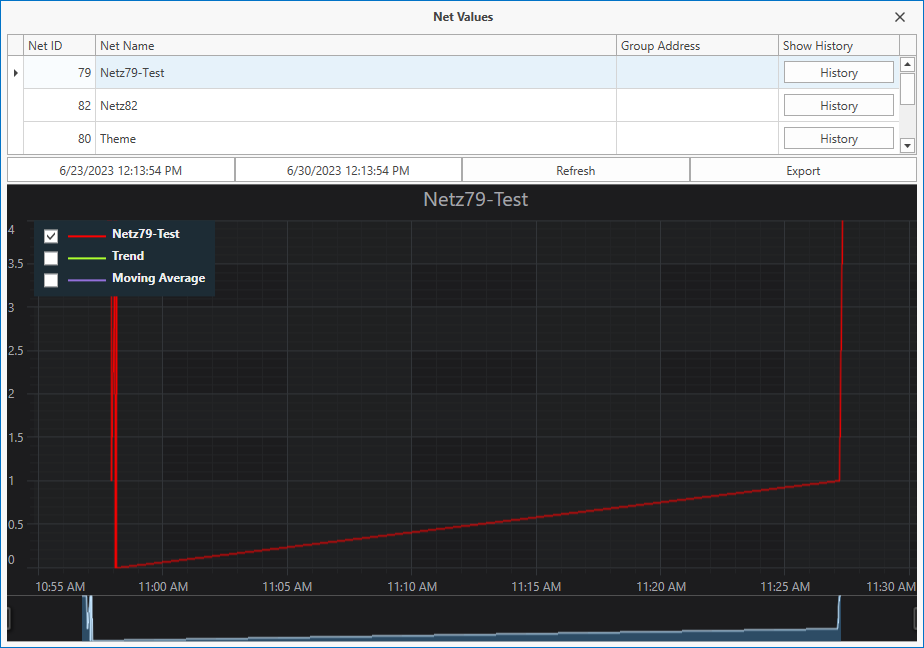
Designation |
Function |
|---|---|
Network ID |
Display of the internal network ID. |
Network Name |
Network name of the link. If the network was not named in the editor, the network ID is displayed. |
Group Address |
If the data point is linked to a KNX group address, this is displayed here. |
Show history |
With this button, the values of the data point in the specified period are displayed in the plotter. |
Date/Time |
Setting option for the time period to be viewed (start / end). |
Refresh |
Refresh of the display. |
Export |
Exports the displayed data to a csv file. |
Diagram |
In the chart, the graph for trend and moving average can be displayed in addition to the value from the data point. |
Client Debug Mode:
If the debug service has been activated in the server console, the client can access the service in debug mode. In this mode, the visualisation can be reset to a specific point in time. The settings are made via the additional window.
Designation |
Function |
|---|---|
Debug step duration |
Output in milliseconds for the time needed for the visualisation |
Min / Max Date |
Selection for the observation period. |
Current Date |
Date / time for the displayed state. |
Time Interval |
Selection of the time interval to be jumped in time with Previous/Next. |
Previous/Next |
Executes a time jump forward or backward in the set time interval. |
First/Last |
Executes a time jump at the first/last time. |
Date/Time |
Selects a specific point in time to be viewed. |
Get State |
Shows the state of the system at the specified time |
Play/Stop |
Starts/stops time-lapse playback of the states. |
User login via command line:
The Windows client can be started with user login via the command line.
This must be started with the following call:
"C:\Program Files\Alexander Maier GmbH\EisBaer SCADA 4.0\Eisbaer.Client.WindowsApplication.exe" /u:user /p:password /ip:IP address /cp:9961 /dp:9962
Replace "user" with the created user
"password" with the password created (one space for no password)
Replace "IP address" with the IP address of the server
"cp" with the communication port (default 9961), if the parameter is missing, the default is used
"dp" with the download port (default 9962), if the parameter is missing, the default is used
If /u: and/or /:p are missing, all parameters are ignored and the current settings from the Autostart configuration are used.