The Bose® SoundTouch® driver is an unVisiblee server component that provides the ability to control and display Bose® SoundTouch® audio devices (such as Soundtouch 10, Soundtouch 20, etc.). It is also possible to merge them into zones and to dissolve them again.
Under busbaer.de in the register Download - EisBaer SCADA - SCADAComp there is also a sample templateDirect.
Annotation:
Depending on the state of the Bose® API for sound-touch players, new functions are added or may even be omitted. Please understand, if we can only play the functionstand of the API. Of course, we endeavor to map the functionality 1: 1, but can not fully guarantee this. Special functions have now been implemented deviating or for required reasons, especially in the component that is not or not yet documented in the API.
The basic setup of the audio device is via the Bose® app or the Bose® desktop controller from Bose®. After commissioning, you can integrate a player into the EisBaeren with one component each and thus not only directly via the visualization but also via other connected systems, eg. KNX / Z-Wave / etc. control.
For Windows 8.1 and higher, these instructions should be followed.
Data points of the component (general):
General or Global Communication Ports (SPs)
Name |
Type |
function |
|---|---|---|
Refresh ARP-Liste |
Input |
To add a slave to a zone, the zone master must be given the ID and the IP of the slave. If the IP address changes frequently and can therefore be sent to the "add slave to zone" data point, the component will try to determine the IP address based on the ID (corresponding to the primary MAC address of the device). This is done by searching a list kept by the computer. If there is no matching entry for this MAC address, there are two options:
A) the device has not yet been found by the system - here the data point "update ARP list" helps. The then carried out network scan can take some time
B) The device ID does not match the MAC address of the interface used by the BOSE system (WLAN / Ethernet). In this case, the query of the IP address based on the device ID will not work and the IP address is mandatory when calling the data point additionally specify (MAC; IP) |
Bass |
Bidirectional |
Output / setting of the bass value (possible values depend on the device and are output via the two following connections (SPs). |
Bass Maximum |
Output |
Maximum possible setting for the bass |
Bass Minimum |
Output |
Minimum possible setting for the bass |
Notification Volume |
Bidirectional |
Adjust the volume level on the player for notifications. |
Use current volume for notification |
Bidirectional |
Status output and / or activating / deactivating the volume on the player playing for notifications received at the "File Play (URL)" input. |
Play File (URL) |
Input |
Plays the file at the specified URL (including http: //) with the volume specified in the properties (or the current, if set) volume and then returns to the current status |
Debug |
Output |
Diagnosis or DebugOutput. This connection is intended for analysis only in the event of a fault or during initial startup. |
Device On/Off |
Bidirectional |
Turns the Bose® player on / off. Output of the values defined in the properties (can be overwritten at runtime) |
Mute |
Output |
Output of the current mute state (mute) |
Volume |
Bidirectional |
Output and adjustment of the volume |
Request state |
Input |
Manual trigger for status query |
Driver On/Off |
Bidirectional |
Component on or off. Output of the values defined in the properties (can be overwritten at runtime). |
Connection State (REST) |
Input |
Status of the connection to the command interface of the device |
Connection State (Websocket) |
Input |
Status of the connection to the asynchronous event interface of the device |
Status update (cyclic) |
Bidirectional |
Activation / deactivation of the cyclical output of the status values or output of the values defined in the properties (can be overwritten at runtime) |
Status update delay [s] |
Bidirectional |
Delay in seconds between the update status cycles or output of the values defined in the properties (can be overwritten at runtime) |
Subfolder - Device info (Data points):
The Device Info folder contains additional SPs with device-specific information
Name |
Type |
function |
|---|---|---|
Account UUID |
Output |
Output of the account to which the learned player has been registered (Bose® account) |
ID |
Output |
Output of the ID or MAC address of the player. This is needed if e.g. other players (SLAVES) should be added to the group / zone where this player is the MASTER |
Country code |
Output |
Output of the country code to which the player has been set |
Modul type |
Output |
Output of the sound module type of the player |
Name |
Output |
Output of the player name given to the player at the setup |
ID (MAC Addresse/IPs) |
Output |
Output of the MAC addresses / IP addresses of the player |
Region code |
Output |
Output of the region code to which the player has been set |
Type |
Output |
Output of the player type e.g. Soundtouch 20 |
Variant |
Output |
Output of the device variant |
Variant modus |
Output |
Output of the additional type specification of the player |
Subfolder - Now runs:
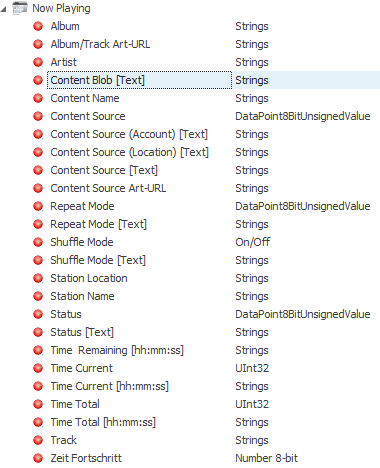
Please note that depending on the source selection, the function / label of the outputs should be adjusted individually in the visualization. The outputs are generalized and not explicitly assigned to a source. Keep in mind that we have no influence over the output at the individual SPs - these are mostly source-dependent.
Name |
Type |
function |
|---|---|---|
Album |
Output |
Name of the album |
Album/Track Art-URL |
Output |
Image URL of the current track / album |
Content Blob (Text) |
Output |
ContentItem - Output (Source, Location, Account, etc.), which can be used for special functions / analyzes (see below: Analysis) |
Content Name |
Output |
Name of the title / podcast sequence / interpreter / sender |
Content Source |
Output |
Unique ID of the source e.g. 0 = Amazon, 6 = NAS, 7 = AUX, 10 = OFF / StandBy, 15 = Bluetooth, 16 = TuneIn |
Content Source (Account) [Text] |
Output |
Unique name / ID of the source e.g. NAS = ID string, TuneIn |
Content Source (Location) [Text] |
Output |
Location of the source, e.g. NAS = unique ID of the track |
Content Source [Text] |
Output |
Content / location of the source |
Content Source Art-URL |
Output |
Image URL of the sender / source / |
Artist |
Output |
Name of the artist / interpreter |
Station Name |
Output |
Name of the selected station |
Station Location |
Output |
Location of the selected station, depending on source |
Status |
Output |
Current status of the player as text over the playing source (1 = Play; 2 = Pause; 3 = Stop; 4 = Buffering [Skip]) |
Status [Text] |
Output |
Current status output as ID of the player from the source being played (1 = Play; 2 = pause; 3 = stop; 4 = buffering [Skip] |
Track |
Output |
Issue of the title name |
Repeat Mode |
Output |
Repeat active / inactive |
Repeat Mode [Text] |
Output |
Repetition as text output |
Time Current |
Output |
Previous runtime in seconds |
Time Current [hh:mm:ss] |
Output |
Previous run time in hours: minutes: seconds |
Time progress |
Output |
Progress output of current title in percent, depending on source |
Time Total |
Output |
Total running time in seconds, depending on source |
Time Total [hh:mm:ss] |
Output |
Total track length / podcast sequence in hours: minutes: seconds, depending on source |
Time Remaining [hh:mm:ss] |
Output |
Output the remaining time of the current track in hours: minutes: seconds, depending on source |
Shuffle Mode |
Output |
Output whether the random mode is active or not (true / false), depending on source |
Shuffle Mode [Text] |
Output |
Output of random mode in text form (ON / OFF), depending on source |
Subfolder - Presets:
So far, Bose® has provided six assignable preset memories that can be accessed via buttons and remote control. These locations are recorded in the Soundtouch app or in the Soundtouch desktop software. For reasons of space, only the data point description for the first preset was listed. The other five presets are identical.
Name |
Type |
function |
|---|---|---|
Preset Art-URL |
Output |
Output of the image of the stored preset, if available |
Preset Active |
Output |
Output of the current status of the preset (on / off) |
Preset Name |
Output |
Output of the preset name |
Preset Number |
Output |
Output of the preset number |
Preset Source |
Output |
Output of the preset source |
Subfolder - Source:
The following 10 sources can currently be selected directly in the "Source" folder - but must be populated with additional information (text content), for example. with the desired station ID, playlist on a NAS, etc. - see analysis / tools at the end of the data points.
Name |
Type |
function |
|---|---|---|
Amazon |
Input |
Switches to the specified source: Amazon and returns the contents of the string that you have determined through the analysis and send to this input |
AUX |
Input |
Switches to the specified source: AUX (depending on the device, several are available.) Without specification the default source "AUX" is used automatically. |
Buetooth |
Input |
Switches to the Bluetooth input (no further information required) |
ContentItemBlob [XML] |
Input |
Switches to the specified source: ContentItemBlob and returns the contents of the string that you have determined through the analysis and send to this input |
Deezer |
Input |
Switches to the specified source: Deezer and returns the contents of the string that you have determined through the analysis and send to this input |
Deezer source type |
Input |
Pass the source type to Deezer via this data point. It is important that Deezer and Deezer source types are triggered shortly after each other. |
Internet Radio |
Input |
Switches to the specified source: Internet Radio and plays the content of the string that you have determined through the analysis and send to this input |
NAS |
Input |
Switches to the specified source: NAS and returns the content of the string that you have determined through the analysis and send to this input |
RadioPlayer |
Input |
Switches to the specified source: RadioPlayer and returns the content of the string that you have determined through the analysis and send to this input |
Spotify |
Input |
Switches to the specified source: Spotify and plays back the contents of the string that you have determined through the analysis and send to this input |
TuneIn |
Input |
Tune to the given provider "TuneIn" with over 120,000 radio stations and podcasts and play back the content of the string that you've identified through the analysis and send to this input. On the website http://www.tunein.com can be searched for channels and when crossing the logos in the status bar, the ID of the sender, for example. s78373 be learned. These codes are needed when you use e.g. want to create more presets. |
Subfolder - Key:
In Folder keys, there is one SP (shared property) for each possible key / function. This can be used to illustrate the functionality of a remote control and / or the basic functions of the larger players.
Name |
Type |
function |
|---|---|---|
Power |
Input |
Switches the selected player ON / OFF |
AUX |
Input |
Switches to the source AUX |
Thumbs up |
Input |
Evaluation of a track / title with thumbs up |
Thumbs down |
Input |
Evaluation of a track / title with thumbs down |
Add Favorite |
Input |
Title / station / podcast / mark path as favorite (heart symbol in the app) |
Remove Favorite |
Input |
Selected track / channel / podcast / path to remove favorite status (heart icon in the app) |
Mute |
Input |
Switches the player silently (mute) |
Volume up |
Input |
Increase the volume with a trigger |
Volume down |
Input |
Decrease the volume with a trigger |
Bookmark |
Input |
Bookmark the selected track / station / podcast |
Pause |
Input |
Pause playback of the current source |
Preset 1 |
Input |
Recall the stored preset # 1 |
Preset 2 |
Input |
Recall the stored preset # 2 |
Preset 3 |
Input |
Recall the stored preset # 3 |
Preset 4 |
Input |
Recall the stored preset # 4 |
Preset 5 |
Input |
Recall the stored preset # 5 |
Preset 6 |
Input |
Recall the stored preset # 6 |
Play |
Input |
Playback of the selected source |
Play/Pause |
Input |
Start / pause playback of the selected source (toggle) |
Stop |
Input |
Stop playback of the selected source |
Track next |
Input |
Jump one more title |
Track previous |
Input |
Jump back one title |
Repeat all |
Input |
Repeat all titles (mainly playlists) |
Repeat off |
Input |
Switch off repetition (concerns mainly playlists) |
Repeat Track |
Input |
Repeat the selected / running title (mainly playlists) |
Shuffle on |
Input |
Activate shuffle play (mainly affects playlists) |
Shuffle off |
Input |
Disable random play (mainly affects playlists) |
Subfolder - Zone:
These communication ports allow you to designate Bose® SoundTouch® players as Zone Masters, as well as assign the members (players) to the created zones and remove them from the zones via the corresponding MAC address of the players.
Name |
Type |
function |
|---|---|---|
Remove Slave (enter Slave MAC) |
Input |
If this port is triggered and the ID [MAC address] of the desired player is passed through a string, it is removed from the zone and is currently in standby mode |
Add Slave (enter Slave MAC) |
Input |
If the ID [MAC address] of a player is passed as a character string via this port, this will be added as a slave to the zone. |
Create Zone |
Input |
This input activates the player as zone master, after which additional players can be added via the corresponding inputs and also removed again |
Is Zone Master |
Output |
Status output of the zone master - active / inactive |
Zone Master [ID] |
Output |
Output of the zone master incl. IP address and MAC address |
Is Zone Member |
Output |
Status output of the zone member (s) - active / inactive |
Zone Member(s) [IDs] |
Output |
Issue of the zone member (s) incl. IP address and MAC address |
Properties:
Basic settings for each Bose® SoundTouch® player through the Properties window.
Name |
Standard |
function |
|---|---|---|
Player |
|
Enter the IP address of the desired player here. About the Bose® SoundTouch® app can be these in the "Settings - About About" quickly determine |
Timeout [s] |
5 |
Timeout for communication in seconds |
Status update (cyclic) |
set |
Defines whether the status - current title information, volume, etc. - should be polled cyclically or not |
Status update delay [s] |
60 |
Defines the pause in seconds between the individual status requests of the player |
Use current volume for notification |
not set |
Accepts the already set volume of the player to play a music file via the input "File play (URL), if activated. If the option is not set, the following notification volume is adopted, which can also be changed via an SP |
Notification Volume |
50 |
Preset playback volume for the SP input "Play File (URL)". As a rule, the volume value is minimum = 0 and maximum = 100 |
Account-ID for NAS |
not set |
Enter the ID of your NAS device after analysis via XML retrieval via browser or via the corresponding component outputs (see below: Analysis) (must be announced beforehand via the Soundtouch app) |
Account-ID for Amazon |
not set |
Post the ID of your Amazon account after analyzing via an XML-request via browser or via the corresponding component outputs (see below: Analysis) (must be announced in advance via the Soundtouch app) |
Account-ID for Deezer |
not set |
Post the ID of your Deezer account here after analysis via an XML query via browser or via the corresponding component outputs (see below: Analysis) (must be announced beforehand via the Soundtouch app) |
Account-ID for Spotify |
not set |
Post the ID of your Spotify account after analysis via an XML-request via browser or via the corresponding component outputs (see below: Analysis) (must be announced beforehand via the Soundtouch app) |
Driver On/Off |
not set |
This can be used to set whether or not the component should be active when the system is started. This can also be triggered via a communication port. |
Analysis of source names / locations and account data:
1.Possibility via browser (Firefox / Chrome / Edge / etc.) Via XML-retrieval
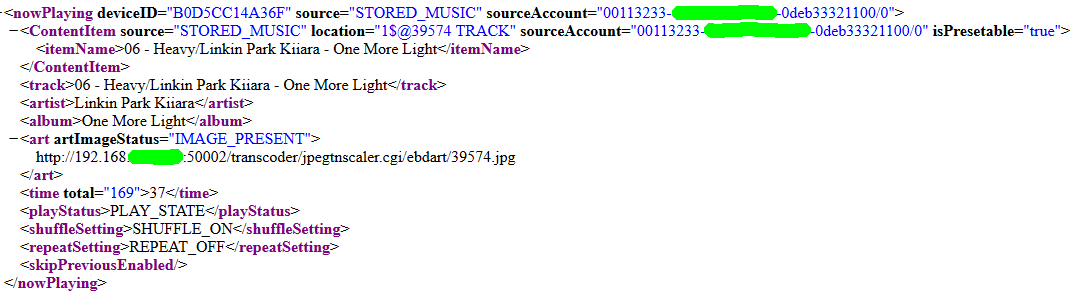
Start your desired source on the app, which is not available directly from EisBaer SCADA. a playlist from your NAS or a special TuneIn station. Open a browser on your computer and enter the following URL in the input window: http: // IP-address of the player: 8090 / now_playing. An XML will be displayed in the browser window, from which you can copy out the required data and continue to use it in the EisBaer. In the entry source = "", scourceAccount = "", location = "" etc. you can copy the required data to fill the source inputs individually. You enter the account data of the individual sources in the properties window of the player. On the source inputs send the location content by string.
In the following example, a special track is to be played from the NAS via a Bose® SoundTouch® player. The Source name is "STORED_MUSIC" after analysis (see above), "SOURCE-ACCOUNT" is the source ID for the NAS (each NAS has its own ID !!!) and the title is the content text of "LOCATION ".
Enter the source ID for NAS in the properties and send the location to the special NAS source Input via a string. Most quickly implemented via a button, select "Value (ON) Press", select value setting "String Extended" and fill with the content "1 $ @ 39574 TRACK" - connect value (push) to the SourceInput "NAS" - activate simulation - test. By pressing the button the registered title will be played. With this or as described in Variant 2, you can send any other source / title / playlist / sound effect via IceBear SCADA to the Bose player. Create your own presets or start individual playlists at different times of the day.
Sample output of an XML retrieval (NAS):
2.Possibility via special outputs of the component
Similar to the example above, you also get the information you need via special outputs in the component. For example, under the "Content Blob [Text]" output, you will get the most important data from the query above, and if you just need the id of the running station, the output "content source location [text]" will help you. You can use the Bose app to make special playlists / sources / podcast selections and to start the outputs of the component you want to connect to, for example, the File Logger component to start a detailed recording for further use, e.g. Use scene blocks, sequences or other preset keys to expand the scope of functions for source playback - with or without zone formation.