The ColorShow Editor is a Visible Client component. It is used to display and operate the ColorShow.
To use the ColorShow Editor, it must be connected to a ColorShow. It is possible to combine several ColorShow editors with one ColorShow, but not the other way around ColorShow with a ColorShow Editor.
Data points of the component
Name |
Type |
function |
ColorShow |
Bidirectional |
Connection between a calendar and one or more ColorShow editors. |
Is color editor open |
Output |
Outputs an ON signal when the color configurator is open. |
Lock operation (display only) |
Input |
If this input is not used, the component can basically be operated. If the input is connected with an on signal, the component can not be operated. It then only has display function. |
Mouseover |
Output |
This output can be used to start an event when the object is moved by mouseover. |
Input |
||
Open/close color editor |
Input |
The Colour Configurator can be opened via an ON signal at this data point. An OFF signal closes the configurator again. |
Visible |
Input |
If this input is not used, the component is Visible. When used, the unvisible component is switched with an off signal and a Visible on signal. |
Client View
The ColorShow Editor is displayed as a rectangular button. In the area we show the current color. Click on the area to open the control element (here in RGBW mode).
Main window
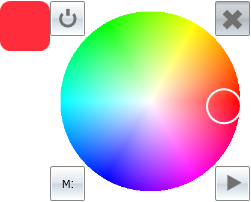
By clicking on the color ring / spectrum we select the desired color and output it directly on the data points. The white ring indicates the chosen color.
Control buttons:
- On / Off (top left): With this button, the lighting can be switched off, i. on all color data points we sent the value 0. If the sequence is running it will be stopped.
- X (top right): The X button is used to close the control without any further action.
- M: (bottom left): This button will show or hide the lower memory / sequence window.
- Play / Pause (bottom right): With this button it is possible to start and pause the color sequence.
Memory / Sequence window opened
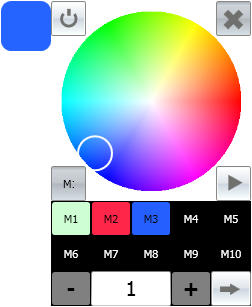
- The memory buttons M1-10 can be used to save and recall colors that are selected in the main window. A short press of <1000 ms will output the color on the color data points. With a long key press> 1000 ms, the color selected in the main window is added to the actuated position. With a very long key press> 3000 ms we set the storage position to the color black. The label of the key then changes from black to white.
- With the + and - keys you can change the step time of the color sequence. The time in seconds is displayed in the text field. With a short button press <1000 ms, the time is increased by 1 second. With a long button press> 1000 ms, the time is increased by 10 seconds. Pressing and holding the button will increase the remaining 1000 ms by another 10 seconds after the first press. A maximum of 900 seconds can be set.
- Use the circle / arrow key (bottom right) to toggle the infinite loop function. With the circle arrow, the sequence runs endlessly, with a straight arrow only once.