The HTTP server is used to communicate via HTTP over the specified port via HTTP GET, or POST. It can be sent and read.
Data points of the component:
Name |
Type |
function |
Start / Stop http listener |
Input |
Here, the component is switched on and off. |
Http Service is listening |
Output |
This shows the activity of the component. |
Url of last request? |
Output |
The last URL that picked up the component is output here as text. |
Debug |
Output |
The diagnostic information is displayed there, linked to the [Signal] input of the log window. |
Dynamic |
Folder |
Folder Dynamic displays the data points of the channels. These can be inputs or outputs. |
Properties:
Name |
Standard |
function |
Channels |
0 |
Here are the channels for sending and receiving set. |
IP white list |
All |
All hosts or just one selection of hosts can be accepted. These must then be specified explicitly. |
URL Prefixes |
http://*:9090/ |
Specifies the port on which the component listens. |
Start Http listener automatic |
|
If this selection is hit, the Http server starts automatically. |
Add Channels:
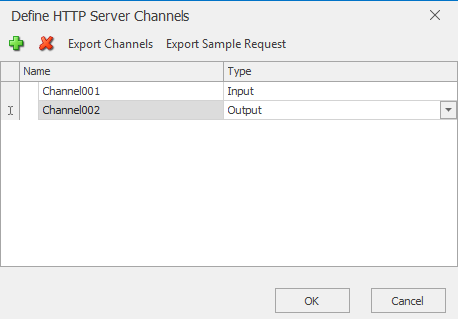
Over the green plus the necessary channels can be added and removed over the red X again. The labeling of the channels can be edited. The channel type can be input, output and bidirectional.
Examples (use URL window browser):
Write single values (Output)
http://192.168.100.59:9090/set?Channel001=False
http://192.168.100.59:9090/set?Channel001=True
http://192.168.100.59:9090/set?Wert003=abc
http://192.168.100.59:9090/set?Wert003=124
write several values (output)
http://192.168.100.59:9090/set?Channel001=true&Channel002=false&Wert003=Text
read (Input)
http://192.168.100.59:9090/get?channels=Channel002
http://192.168.100.59:9090/get?channels=all
http://192.168.100.59:9090/get?channels=Channel001;Channel002; …
Sample templates:
Download link: http-receiver
General information about sample templates (SCADAComp):
Download the desired SCADAComp file and unzip the ZIP file into an empty folder. In the EisBär editor ribbon, select the "Import components" option under "Project" and load the template. If a conversion is necessary because the EisBär version is newer, confirm the process with YES. To retain functionality, select the "Create new networks" option as the copy rule when pasting.