The EisBar portal server allows access to the Eisbaer server without configuring the Internet gateway (router). This eliminates the settings for e.g. following services: VPN, port forwarding or DynDNS.
The portal server is a server operated by us on the Internet. In order to be able to use it, the access must first be ordered from Alexander Maier GmbH (www.busbaer.de).
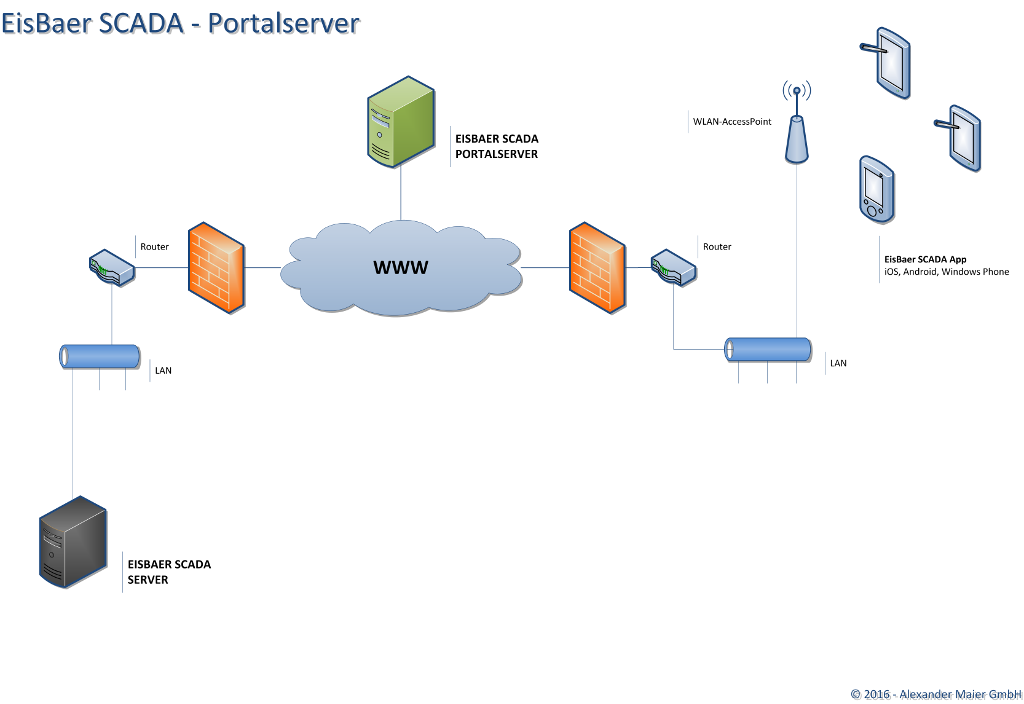
Information about activating the portal access.
First, you must log in to our portal.
1.To do this, call the following address on http://www.eisbaer-manager.de
2.Create your account (All required information is marked with an asterisk)
3.The login name (login name) must contain at least 6 characters. Write down the name, it will be needed later in the server and in the app.
4.Copy the sent activation code.
Activation code: XXXX-XXXX-XXXX
5.ATTENTION: The password must be at least 8 characters long, contain a capital letter and a number. Write down the password, it will be needed later in the server and in the app.
6.You will get an activation link to the specified e-mail address which you must click on. After that, the activation is completed. For confirmation, you will receive an e-mail with your registration information.
7.Stop the service (TAB "folder") on your EisBaer server PC in the EisBaer Server configuration console.
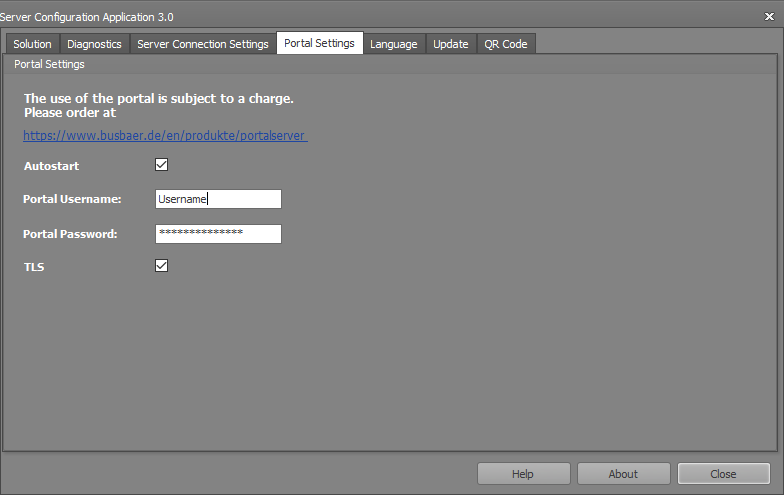
8. Switch to the TAB "Portal Settings" and enter your login name and password. Put the hook on autostart and TLS.
9. Start the service in the TAB "Folder". The polar bear server logs on to the portal and can be reached by the apps.
10. Next, in the app under Settings \ Network \ ACCESS \ "Use Portal Server", you must set to Auto and enter your name and password.
Thereafter, access via the portal should work. First the app attempts to connect locally, if this does not work, the connection is established via the portal.
There are currently activation codes with 3 different durations. The runtime starts with the creation of the portal server account.
3 weeks before the end of the term, a reminder will be sent to the deposited e-mail address. This leaves enough time to extend the portal access.
ATTENTION: After the connection has been disconnected, the server can not be reached for about 1-2 minutes. This can e.g. by abortive network connection or by manual abort of the download.
All port shares are set automatically. If the firewall is managed by an administrator, the information for entering into the Windows Firewall is displayed here.
Used ports for portal connection. If necessary, these ports must be released starting if the portal login is not possible.
A connection is established to the address http://eisbaer-manager.de with the following ports.
Encrypted connection (default):
Eisbaer Server -> server.portSsl = 8182 (new)
Unencrypted connection (TLS deactivated in app and EisBaerserver):
Eisbaer Server -> server.port = 8181
Access via the EisBaer portal access:
The URL to the registration form via browser using our portal server access is: https://eisbaer-manager.de/webapp
The data you specified when creating the portal access and set in the EisBaer server configuration console are entered here as the system name (login name) and password.
Automated login with and without autologin via an existing portal server access:
With completed login mask without autologin:
https://eisbaer-manager.de/webapp?username=Musteranlage&password=Musterpasswort&eis_user=Mustermann&eis_pass=Musterpasswort2&use_tls=1&submit=0
With completed login mask with autologin:
https://eisbaer-manager.de/webapp?username=Musteranlage&password=Musterpasswort&eis_user=Mustermann&eis_pass=Musterpasswort2&use_tls=1&submit=1
Optical differences and components:
The displays of the following components may differ from the EisBaer Windows client. Differences may also be caused by the browser used.
•Touch value input
•Slider (depending on style)
•Colour Picker (colour selection)
•Calendar editor week clock in horizontal view
•Pie chart cannot animate
•Manual-automatic switch, multi-stage ventilation switch and operating mode switch are always displayed "square".
•Start programme has no function
•Mirroring of the component
•Font and colour
These components are not displayed:
•Textbox
•WPF Theme selection
•Video door intercom (without function)
•File selection
•Media Player
•DALI Emergency Light Manager Display