General
This component is used to send push messages when data is received at the defined inputs.
For this purpose, various push services are supported, for which there are clients for Android and / or IOS. Depending on the service, the possible recipients either have to be defined manually (for this the user has to determine the recipient IDs from the respective service provider) or they can be imported (for example in the case of the polar bear push service).
Also, the data points available per channel defined differ depending on the service selected.
properties
The component can be configured via the settings.
Name |
Standard |
function |
|---|---|---|
Service Konfiguration |
Eisbaer... |
Opens the editor for configuring the push service to use. |
Recipient |
0 |
Opens the editor for creating the recipients. |
Channels |
0 |
Opens the editor for creating message channels. |
Timeout [s] |
5 |
Here, the timeout for communication with the respective service can be set in seconds. |
Verfügbarkeitstest-Intervall [min] |
5 |
Here, the interval can be set by checking the availability of the service. It should be noted here that partial test messages must be sent in order to reduce the possibly available quota. |
Driver On/Off |
|
Turns the driver on or off. |
Recipient
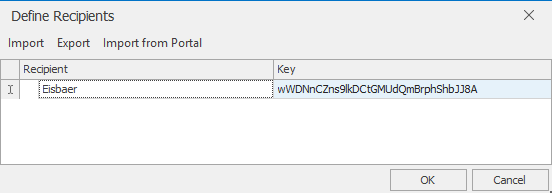
For each recipient, a name and the recipient ID (depending on the push service used) must be specified.
In the case of the EisBaer push service, an import from the recipient of the specified portal useris also possible. For this purpose, the polar bear must be selected in the settings under Channels and the portal data must be entered. Then the recipient and the ID can be imported via "Import from portal". Only then can the receiver be set in the channel editor.
In the case of PushOver, the devices can also be entered for each user key. This allows the messages to be sent to individual devices. The name must match the name under "Your Devices" on the homepage. If no device is specified, the message is sent to all devices.
For Prowl, the API key must be entered.
Channels
The messages can be defined via the channel editor
Name |
Function |
|---|---|
Channel Name |
Freely definable name for the notification. This name is displayed in the message as a heading. |
Recipient |
A recipient must be selected for the messages. This is done using the drop-down list and selecting the defined recipient. |
Priority |
A priority for the message can be specified. The effects of this specification differ depending on the push service used.
For example, emergency messages (priority "Emergency") are displayed to the recipient even if the time of the message lies within the idle time set by the recipient in his service app. Emergency messages must also be explicitly confirmed. If they are not confirmed, they are sent again. For details, please refer to the documentation of the push services. |
Send - Trigger |
The send trigger specifies under which circumstances a message is sent. Any event: Any input signal at the trigger input sends a push. At ON: Only at an On signal at the trigger input a message is sent. At OFF: Only at an Off signal at thetrigger input a message is sent. |
Text (send on trigger) |
If a text is entered here and the data point "Trigger (send predefined message) "is used, this text is also sent with a notification . |
Channel name as prefix |
If this option is set, the channel name is additionally output before the actual message. |
Service configuration
Opens the editor for configuring the push service to use.
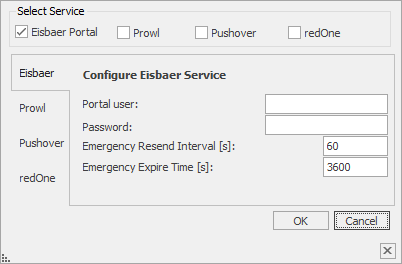
If the EisBaer push service is to be used, the portal access data must be entered. In order to be able to use it, the access must first be ordered from Alexander Maier GmbH (www.busbaer.de). Similar to the pushover service, emergency messages can be sent repeatedly unless canceled or confirmed. For this, the repetition period and the repetition interval can be specified. Here, among other things, the muting of the receiver is also ignored. For this special function the repetition duration and the repetition interval can be specified. This only works for messages which have the priority "Emergency" in the channel editor. Other priorities are not considered for this service. In the case of the "Eisbaer Portal" and "PushOver"service, there is the following additional data point: "Attachment (JPG/PNG)". This allows image files to be transmitted. For this purpose, the absolute storage path of the image file must be specified before the send trigger (or message input).
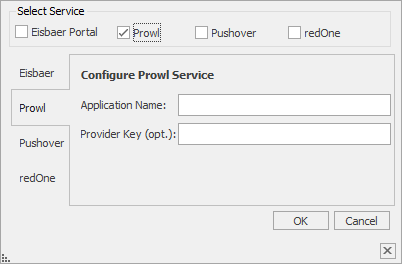
If the service "Prowl" is selected, a name for the application must be selected.
In order to remove the limit of deliverable messages per day, a provider key with flexible quota can be created on the Prowl website and optionally entered here.
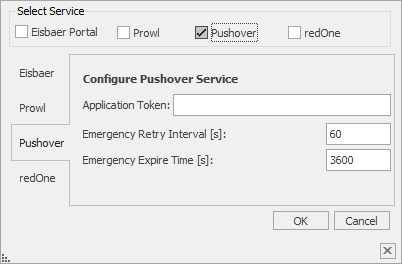
In the case of "Pushover", enter the application token (application token or user key) that can be created on the service's website. For this an application has to be added in pushover. This generates a new token, which is entered in the polar bear as an application token. Furthermore, here the repetition interval for messages of priority "emergency", as well as an associated expiry time (after this time the repetitions end, even if the message was not confirmed by the receiver) can be set. In the case of the "Eisbaer Portal" and "PushOver"service, there is the following additional data point: "Attachment (JPG/PNG)". With this, image files can be transmitted. For this purpose, the absolute storage path of the image file must be specified before the send trigger (or message input).
Pushover can also distinguish priorities. This can be set in the online settings. Meaning (excerpt from: Pushover.net):
Lowest Priority (-2)
When the priority parameter is specified with a value of -2, messages will be considered lowest priority and will not generate any notification. On iOS, the application badge number will be increased.
Low Priority (-1)
Messages with a priority parameter of -1 will be considered low priority and will not generate any sound or vibration, but will still generate a popup/scrolling notification depending on the client operating system. Messages delivered during a user's quiet hours are sent as though they had a priority of (-1).
Normal Priority (0)
Messages sent without a priority parameter, or sent with the parameter set to 0, will have the default priority. These messages trigger sound, vibration, and display an alert according to the user's device settings. On iOS, the message will display at the top of the screen or as a modal dialog, as well as in the notification center. On Android, the message will scroll at the top of the screen and appear in the notification center. If a user has quiet hours set and your message is received during those times, your message will be delivered as though it had a priority of -1.
High Priority (1)
Messages sent with a priority of 1 are high priority messages that bypass a user's quiet hours. These messages will always play a sound and vibrate (if the user's device is configured to) regardless of the delivery time. High-priority should only be used when necessary and appropriate. High-priority messages are highlighted in red in the device clients.
Emergency Priority (2)
Emergency-priority notifications are similar to high-priority notifications, but they are repeated until the notification is acknowledged by the user. These are designed for dispatching and on-call situations where it is critical that a notification be repeatedly shown to the user (or all users of the group that the message was sent to) until it is acknowledged. The first user in a group to acknowledge a message will cancel retries for all other users in the group.
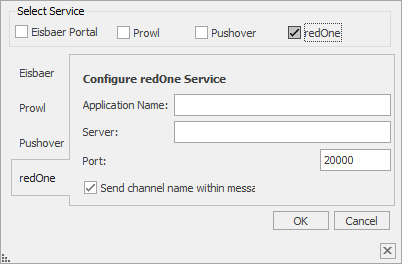
In the case of pointomega's "redOne" service, a freely selectable application name can also be assigned, which is inserted into all sent messages in order to identify the message source.
In addition, the server address and the port under which the redOne server can be reached must be specified.
If the checkbox "Add channel name to message" is activated, the set name of the respective channel is explicitly set to the beginning of the sent message.
In the case of the "redOne" service, there are the following additional data points:
•Notification aborted informs the component that the redOne server has stopped delivering the message.
•Notification dismissed informs the component that the message has been rejected.
•Via "Notification started", the component informs that the redOne server has started the transmission of the message.
•Notification Complete informs the component that the redOne server has finished delivering the message.
•Via "notification finished" the component informs, the message was acknowledged at the redOne server.
•Via "Alarm completed", the component informs that the alarm source was marked as "finished" on the redOne server. Furthermore, this status can also be triggered by the polar bear and the component reports this to the redOne server.
•Via "Cancel notification" the transmission of a previously started message can be stopped by the polar bear.
Data points of the component
Name |
Type |
function |
|---|---|---|
Debug Error |
Output |
The diagnostic information is displayed there, linked to the [Signal] input of the log window. |
Debug Info |
Output |
The diagnostic information is displayed there, linked to the [Signal] input of the log window. |
External notification request |
Input |
This data point can be linked to the fault message manager component. |
Dynamic |
Folder |
In this menu the data points for each channel are kept. |
Last Message |
Output |
Output on which the most recently sent messages are output. |
Service State |
Output |
Specifies the result of the last availability check. |
Driver On/Off |
Bidirectional |
Toggles the function of the component on or off. |
Data Points in the Folder Dynamic
Name |
Type |
function |
|---|---|---|
Abort Message |
Input |
The repetition of emergency messages can also be aborted via the "Cancel notification" input (send TRUE). |
Attachment (JPG / PNG) |
Input |
URL Input for the storage location of an image file. |
Notification confirmed |
Output |
The "Notification acknowledged"outputis triggered (TRUE) when a message has been acknowledged. The TRUE signal is then output cyclically. |
Acknowledge expected (disable) |
Bidirectional |
Changes to TRUE after a message has been sent. If the message is confirmed, the value changes back to FALSE. If a FALSE is sent to this data point, in the case of emergency messages, the repetition is terminated. |
Debug |
Output |
Debug outputs errors and information pertaining to the specific message channel. |
Message |
Input |
The message to be sent (text, value ect.) Is defined via the SP "message" and the sending is triggered at the same time (in the case of boolean values, depending on the send trigger setting of the channel). |
Error sending Message |
Output |
The Datapoint "Send Error" displays a problem when sending / delivering the message. |
Trigger (send predefined message) |
Input |
Any command will trigger the channel. This can be set in the channel list. |
Value |
Input |
Value for the predefined text where a placeholder occurs formatted with {{ }}. |
With "Text (send on trigger)", a predefined text can be sent on triggering. If "With channel name prefix" is activated, the channel name is also sent. Values at the data point "Value" can be taken over in the channel if the placeholder is formatted with {{ }}. Example: {{#0.0°C}}