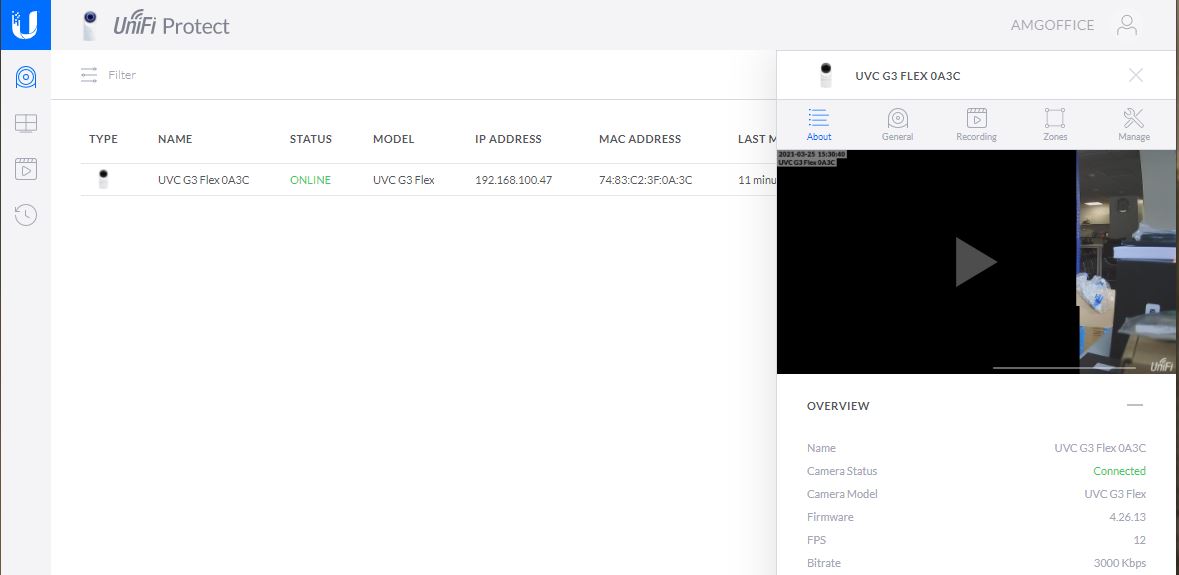
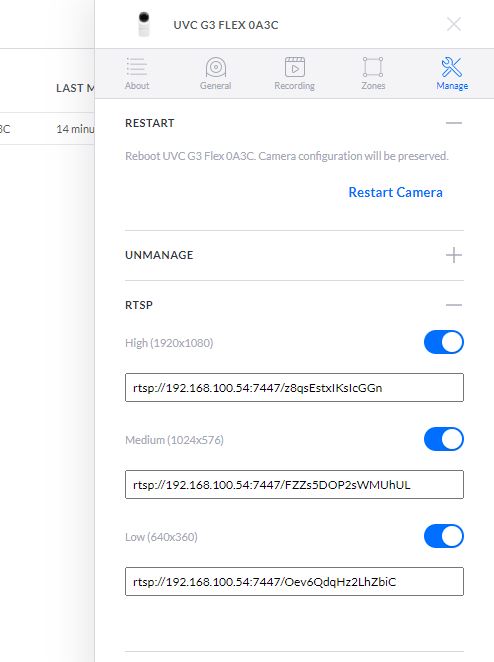
Example UniFi cameras via UniFi-Protect:
Select the desired camera via the UniFi-Protect web interface and click on the list entry to open the management interface of the camera. Click on "Manage" in the upper icon menu of the opened interface and open the entry "RTSP" with the + symbol. The available streams can now be activated with a SlideSwitch. The activation creates a dynamic RTSP stream path incl. key, which can now be transferred 1:1 to the IP camera and media display component. Please note that a change in the camera settings creates a new stream path key, which must then be transferred to the component accordingly.
Note on Ubiquiti's DreamMachinePro (Protect):
The video streams are to be integrated into the Polar Bear as follows: under Devices, select the corresponding camera - under Settings, go to Advanced and activate the desired stream. The link that can be copied is then as follows:
rtsps://IPDERUDMPRO:7441/Oe7VUuhmjbGMM8Ik?enableSrtp - adapt this link as follows: rtsp://IPDERUDEMPRO:7447/Oe7VUuhmjbGMM8Ik
Tip: Use the appropriate stream (image size) as it is used in the visualisation in order not to unnecessarily load the performance of the computer used. It is often not necessary to output a FullHD stream to a display size of only 640 x 360 - it is better to use the "suitable" stream.