Layers can be used to organise large and complex pages. Locking, hiding/showing individual layers or even individual components can prevent accidental moving or reparameterisation. If no components are explicitly inserted into a layer, they are all located in the "Background" layer created by default. They can then be individually locked or hidden there.
Layers also define the Z layer area in which the components in it can be located. The Z-level of a component can only be changed within this area.
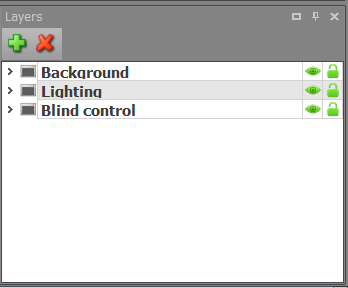

Adding / removing a layer
Important: If a level is to be deleted, there must no longer be any components on this level!
Components can be searched for by name using the search function.

Eye: Visible On/Off
Lock: Edit On/Off
The Z-index of the above example are define as below:
Background 0-9999 (default)
Lighting 10000-19999
Shutter 20000-29999
The Z-index starts on the page at 0 (smallest value). All further levels build upwards. In the above case, a component in the000 level is therefore always above a component in the background, regardless of which Z level is selected within the level.
When using a master page, the contents of the master page are always displayed below the "Background" level.
Important: The layer cannot be changed subsequently, or only by cutting the component and pasting it into the desired layer. When pasting, be sure to select the "Keep meshes" option.