 EisBaer SCADA - Server configuration console
The EisBaer SCADA Server runs as a system service on the installed computer. The service is preset to "Automatic (Delayed Start)", i.e. when the computer is started, the EisBaer SCADA Server is automatically started with a 2 minute delay. This happens before the user logs on. A user login is not required. The delayed start is necessary to establish the network connection before the EisBaer service is started.
The EisBaer SCADA server service is set up using the EisBaer SCADA - Server Configuration Console. Administrator rights are required to open the console. A fixed IP address must be set in the server so that the clients (Windows, WebApp and MobileApp) can access the server at any time.
Projects are automatically updated to the installed EisBaer version when the EisBaer service is started, provided the project status was created with an older EisBaer version. Before this, a backup copy is created in the project folder under the name ../Backup (ZIP file). This function is identical in the EisBaer Editor.
Messages related to the EisBaer SCADA Server are saved in the Windows Event Viewer under Windows Logs\Application. EisbaerServerWindowsService is used as the source.
Note: For virtual environments, please observe the notes in the chapter USB dongle server.
Settings in the console are only possible when the service is stopped.
Name |
Description |
|---|---|
IP address |
A fixed IP address must be set in the server PC so that the clients (Windows, WebApp and MobileApp) can access the server at any time. If the server and the client are the same machine and no other clients are needed, the IP 127.0.0.1 (local host) can also be set. However, this will not allow any other client to reach the server. |
Folder / Project |
Storage path to the project that the service is to load. For Project, the ".EisbaerV3Solution" file of the project is selected. |
Save and load system state |
If this option is set, the last state of the components will be loaded after a restart of the service. Without, all components are displayed with their "undefined" state. |
Load Status / Server Status |
There are 3 states: Server is not started, Start pending and Server is started. If the server is not started (project not loaded), the visualisation cannot be displayed in the client. If the service is started by pressing the "Start service" button and the project is loaded, the status changes to "Start pending". Next to it, the steps carried out until the start are displayed. This process must not be interrupted. When the server is ready, the display changes to "Project loaded". Projects are automatically updated to the installed EisBaer version when the EisBaer service is started, provided the project status was created with an older EisBaer version. This creates a backup copy in the project folder under the name .../Backup (ZIP file). This function is identical in the EisBaer Editor. Stop Service unloads the project again. Restart Service restarts the service. The behaviour is the same as with Stop and Start Service. |
Connection status |
Indicates whether the server console is connected to the service itself. |
Licence |
Shows whether the licence is valid or not. The licence file can also be downloaded here. No further action is then required. Alternative manual installation: Install the "Eisbaer.EisD" file via the "Install licence" button; select the file type *.* for this. Use Show Dongle to display the licence number. |
The Windows client ports are responsible for access by the EisBaer Windows client. The download port is also used for uploading and downloading in the EisBaer Editor. If changes are made, these ports must also be changed in the Windows client and in the editor.
9959 and 9960 are the standard ports.
Smart client ports are responsible for accessing the EisBaer mobile apps under IOS or Android. In addition, they are used for WebApp/HTML access via web browser. 8003 and 8004 are the standard ports.
The ports are automatically released in the firewall during installation. If changes are made, these must be configured in the firewall or port forwarding, etc.
Notice:
The EisBaer service requires ports 808 and 3702 as "Lisener" and "Discovery" port for the client/server search. Without port 808 the service cannot be started and without 3702 no client will find the server via the search. All ports that are entered in the firewall are listed under Software Setup.
http secure must be activated in order to use encrypted transmission. Clicking on "http secure" opens the dialogue for integrating the certificate. There is a self-signed "EisBaer default certificate". Alternatively, you can use your own private certificates (with key icon). To do this, the fingerprint/thumbprint of the certificate used must be entered. After pressing the "Bind" button, it is displayed whether the binding was successful.
Alternative control via the Windows command prompt (cmd) : netsh http show sslcert ipport=0.0.0.0:8003
To retrieve the fingerprint/thumbprint of a certificate
1. open "Manage computer certificates"
2. click on Certificates (Local computer) in the left-hand section of the Console root window
3. click on the My/Personal certificates folder to expand it. The certificate must be installed here.
4. Click on the Certificates folder to expand it.
5. search for your certificate in the list of certificates. The "Intended purpose" column must contain "Server authentication". 6.
6. double-click on the certificate.
7. click on the Details tab in the Certificate dialogue box
8. move the contents of the field list and click Fingerprint
9. copy the hexadecimal characters from the field (Ctrl-C).

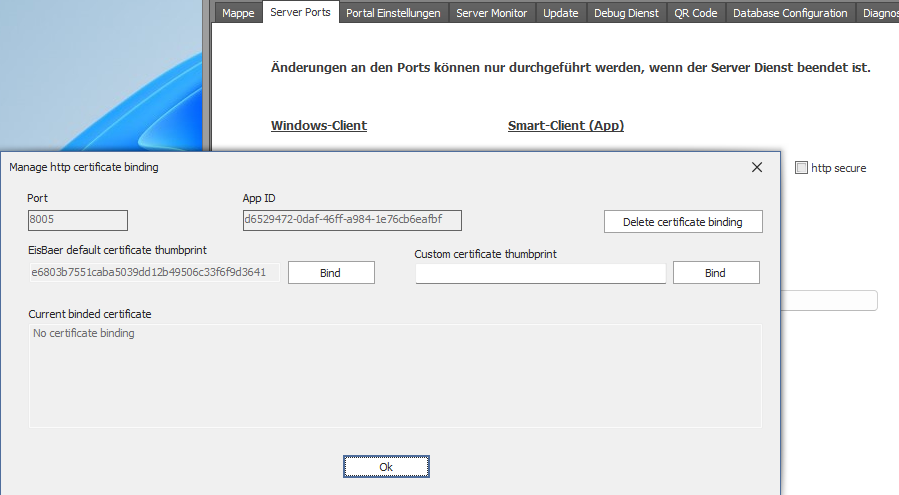
The portal server connection is describedinthe chapter Portal server. If no portal access is available, the autostart must be deactivated.
Server Monitor:
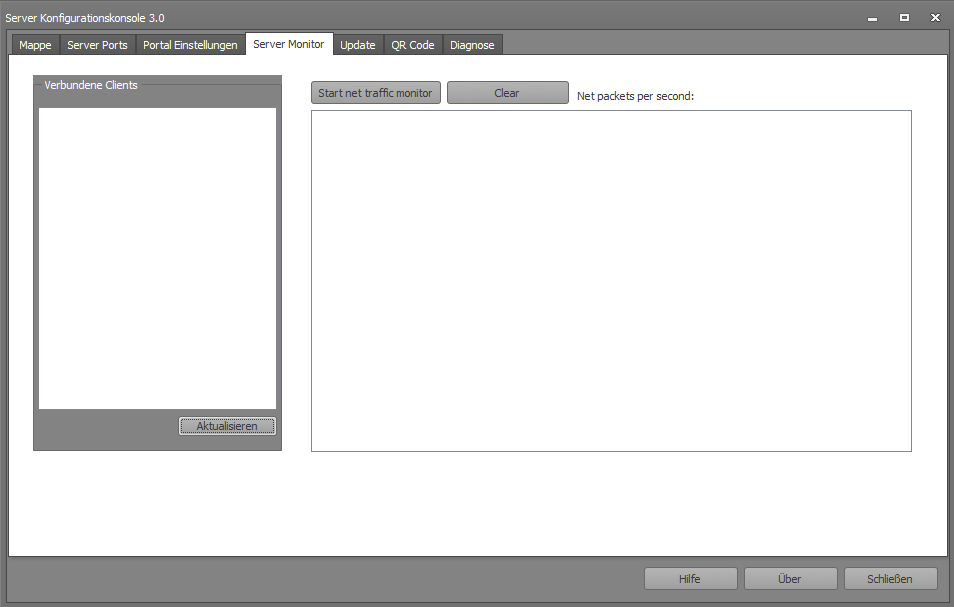
All clients that are connected to the EisBaer server service can be displayed in the server monitor. The display consists of the computer name and its IP address.
All network communications are recorded via "Start net traffic monitor". The display consists of the time stamp, network name, internal number and the value that was sent to the network.
Update:
The current and available EisBaer SCADA version is displayed in this tab. All new features of the EisBaer versions are displayed via "Show changelog".
If a newer version is found after "Check for updates", it can be downloaded and installed. The update version is saved under C:\ProgramData\Alexander Maier GmbH\EisBaer 3.0\deploy.
QR Code:
Display of the QR code in order to take over the connection data with the Android or iOS app. This only needs to be scanned when changing the IP address or the ports. Not when changing the polar bear project.
Diagnosis:
The server logging can be activated in TAB Diagnosis. Only activate in the event of an error and after consulting the support team! Below this is the selection for the storage location and the log level.
In addition, the installation of the EisBaer Dongle Fix and the KNX USB Fix is possible here. This changes the energy saving settings of Windows 10 to allow permanent access to KNX/USB interfaces.