With the help of the Video Door Intercom component, it is possible to integrate SIP-capable door intercoms with audio and video into the user interface.
These notes must be observed for Windows 8.1 and higher.
The .Net Framework 3.5 must be installed before using the component.
It must be activated under Programs and Features in the Control Panel. To activate, the .NET Framework 3.5 (contains .NET 2.0 and 3.0) checkbox must be ticked. An Internet connection is required for this option.
A SIP server is required as the connection between the door intercom and the EisBaer video door intercom. If there is no SIP server in the door intercom or the telephone system, the"SIP server internal" component must be used as an exchange. The user data (name/password) of all clients used are defined in this. A direct connection between the EisBaer video door intercom and the external door intercom is not possible.
Note: Please check whether the existing codes cover the requirements of the door intercom manufacturer. In case of uncertainty, the function should be checked in a test.
All settings you make in the properties window in the editor are only used in the editor. These settings must be made again in the client if they differ from the settings in the editor.
In addition, the component contains the function of the IP Camera Display component. This makes it possible to display a camera image of a "normal" IP camera when you are not in conversation with the door intercom. This could be, for example, an outdoor camera that shows a view of the entrance to the building.
The images from the camera are scaled to the size of the component. The aspect ratio is displayed unchanged.
The URL must be entered completely and in the following example format (Axis): http://192.168.100.123/mjpg/video.mjpg
Data points of the component
Name |
Type |
function |
|---|---|---|
Lock operation (display only) |
Input |
If this input is not used, the component can basically be operated. If the input is connected with an on signal, the component can not be operated. It then only has display function. |
Open Settings Dialog |
Input |
The client settings for the door intercom open with any trigger signal on this input. When used in the editor, the data is not saved. The setting is done in the client, specific for each PC. |
IP-Camera Video Visible |
Input |
When an On signal is input, the display of the IP camera pictures is paused. No picture is displayed. If an Off signal is applied, the images will be displayed at the set number of frames per second. |
Doorphone Ringing |
Output |
On while the doorbell rings. Off if the call is accepted or the remote site hangs up. |
Mouseover |
Output |
This output can be used to start an event when the object is moved by mouseover. |
Call Number |
Input |
The received name or number is called by the door station |
Visible |
Input |
With an off-signal the component unVisible and with an on-signal Visible is switched. |
Register Phoneline again |
Input |
Disconnects and establishes a new connection with the SIP server. |
Local Video Start/Stop |
Input |
Starts or stops the video stream defined in the "IP Camera" tab |
Input |
Properties
Name |
Standard |
function |
|---|---|---|
Configuration |
... |
Here you can set the parameters shown below. |
Dtmf Signaling Mode |
RFC2833 |
|
Play Dtmf Sounds |
|
This selection switches the beep on and off. |
Expiration Time[s] |
30 |
Time to register until the timeout |
Auto Hang Up active |
|
Turn this function on and off |
Auto Hang Up Time [s] |
120 |
Time until automatically hung up. |
Note: High refresh rates on the IP Camera Display will burden the system more than low. Please always choose reasonable, lowest possible number.
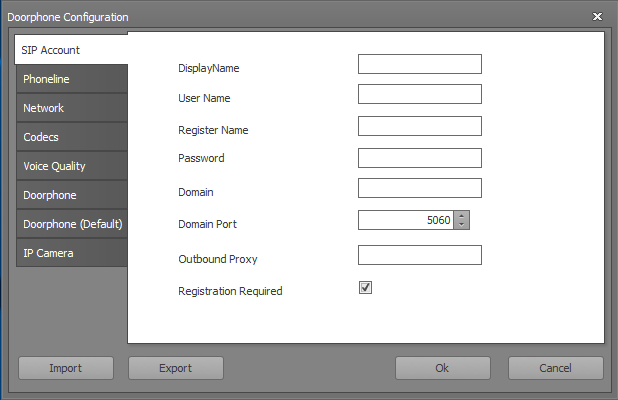
Name |
Standard |
function |
|---|---|---|
Display Name |
|
Any name that is displayed when connecting to the remote station. |
User Name |
|
Name of the user in the server domain. Mostly identical to the registration name. |
Register Name |
|
Name for registration at the proxy. |
Password |
|
Password for registration at the proxy server (switchboard / exchange). |
Domain |
|
Domain of the Proxy, sometimes referred to as Realm. In many cases, the IP address of the proxy is also entered here. |
Domain Port |
5060 od. 5061 |
SIP port of the proxy server for registration. |
Outbound Proxy IP |
|
IP address of the proxy server (switchboard / exchange). |
Registration Required |
x |
If the check mark is set, the video door station must be registered with the proxy (switchboard / exchange) with name and password. |
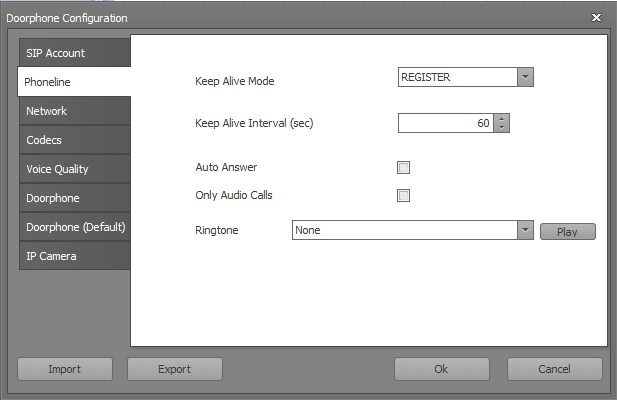
Name |
Standard |
function |
|---|---|---|
Keep Alive Mode |
Register |
Set the keep alive mode. |
Keep Alive Interval |
60 |
Time of the check intervals in seconds. |
Auto Answer |
|
Automatic acceptance of an incoming call. |
Only Audio Calls |
|
If this option is set, the video signal is not transmitted. |
Ringtone |
Default |
Set the desired ring tone. You can also use your own tones. Only the WAV format is supported. The files must be located in the folder: C:\Program Files (x86)\Alexander Maier GmbH\EisBaer SCADA 3.0\Doorphone\Ringtones. All clients must have this wav file in the same directory. |
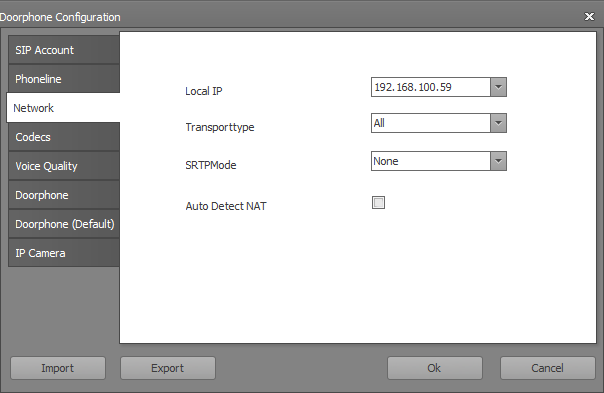
Name |
Standard |
function |
|---|---|---|
Local IP |
|
The local IP address is entered here automatically. |
Transporttype |
All |
Here the transmission type is set. The selection options are: All, Connectionless, Connection-oriented, TCP and UDP |
SRTPMode |
None |
|
Auto Detect NAT |
|
With this selection, the system can read the NAT and the settings are adopted accordingly. |
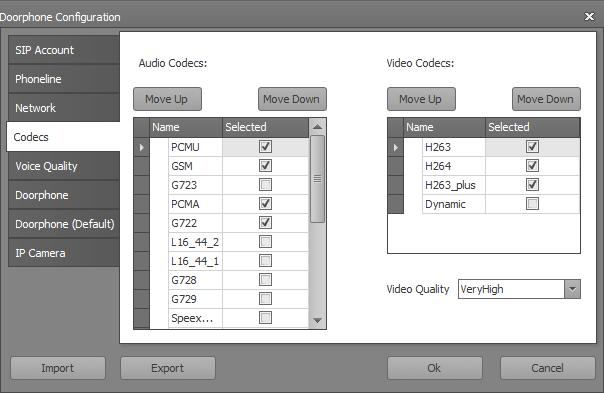
Settings for the various codecs for audio and video. Please note the sequence. The codecs at the top have a higher priority.
In the event of speech problems, an improvement can be achieved by selecting a different audio codec.
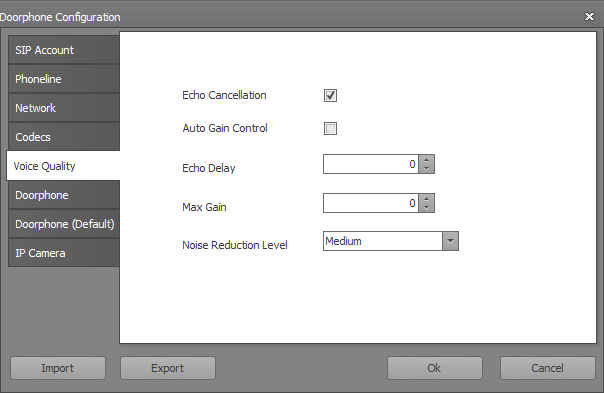
Name |
Standard |
Function |
|---|---|---|
Echo Cancellation |
selected |
This suppresses a reverb effect |
Auto Gain Control |
|
Automatic volume control |
Echo Delay |
0 |
Delay of the echo |
Max Gain |
0 |
Setting for the maximum volume |
Noise Reduction Level |
Medium |
Suppresses noise at the set level |
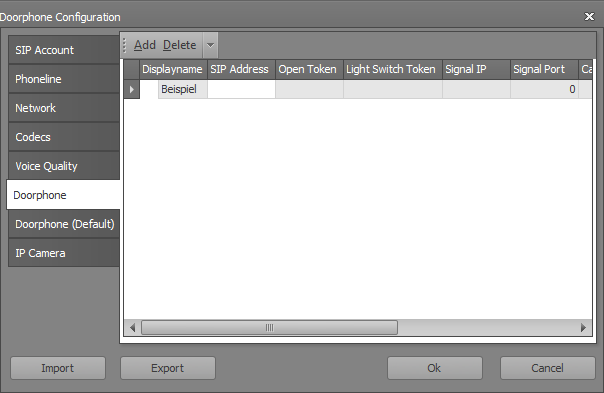
If there are several external call stations, these can be entered here. This will display the camera image from the calling external intercom station before the call is accepted. Only http mjpeg streams canbe displayed: http://<IP>/<path>
The "Open Token" is not the door opener for the external intercom station! This is for a special system.
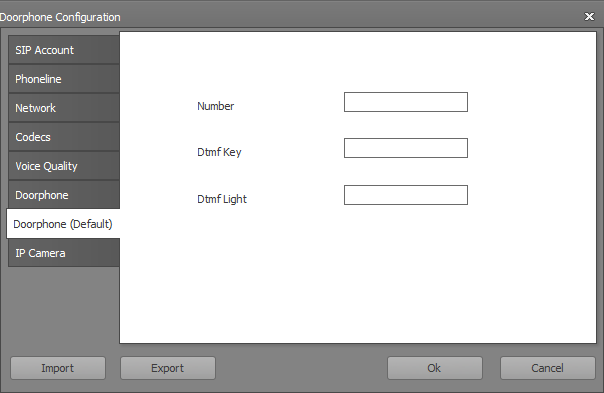
Name |
Standard |
function |
|---|---|---|
Nummer/Name Sprechstelle |
|
Internal number or name of the station on the proxy server (switchboard / exchange). |
DTMF Signal Tür öffnen |
|
DTMF signal tone sent to open the door. |
DTMF Signal Licht schalten |
|
DTMF signal tone sent to switch the lighting. |
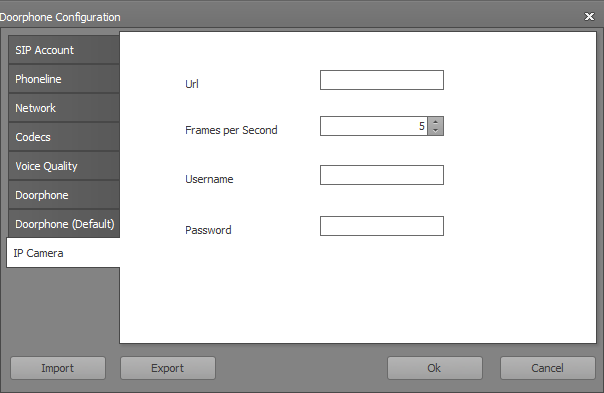
Name |
Standard |
function |
|---|---|---|
IP Kamera URL/Pfad zum MJPG-Stream |
URL / path to the MJPG stream in the IP camera, e.g. http: // <IP> / <xxxx.mjpg path />. This stream is displayed when there is no SIP communication. |
|
IP Kamera Bilder pro Sekunde (0-20) |
5 |
Refresh rate of the image display. The set number of pictures of the camera is displayed, per second. 0 = speed of IP camera |
IP Kamera Benutzername |
Username to log in to the camera if anonymous access is not possible. |
|
IP Kamera Passwort |
Password of the user to log in to the camera. |
Here you can find some example paths of common IP cameras. You can find out the exact path for your camera model directly from the manufacturer.
Axis
http://IPADDRESS/mjpg/video.mjpg
http://IPADDRESS/mjpg/1/video.mjpg
http://IPADDRESS/axis-cgi/mjpg/video.cgi
Mobotix
http://IPADDRESS/control/faststream.jpg?stream=full
http://IPADDRESS/mjpeg
Sanyo
http://IPADDRESS/liveimg.cgi?serverpush=1
Sony
http://IPADDRESS/image
http://IPADDRESS/img/mjpeg.cgi
http://IPADDRESS/video.mjpg