The following section explains in more detail how to set the KNX driver and what needs to be taken into account. The KNX driver component is listed in the component window under Driver. It is created on any page using drag and drop. It is an invisible component. Information on using dummy devices for filter table calculation can be found in the KNX dummy / filter table chapter.
The data from the different ETS versions is imported via the Data points from ETS field. This is started via the buttons for ETS4/5/6 or the file menu. The correct ETS version must always be selected for the import, as the encryption of the passwords is different, for example.
The group address structure can also be customised. The default is a 3-level address structure. A free or 2-level structure can also be selected.
Group addresses can be created manually using the +. Use the x to delete the selected entries from the driver.
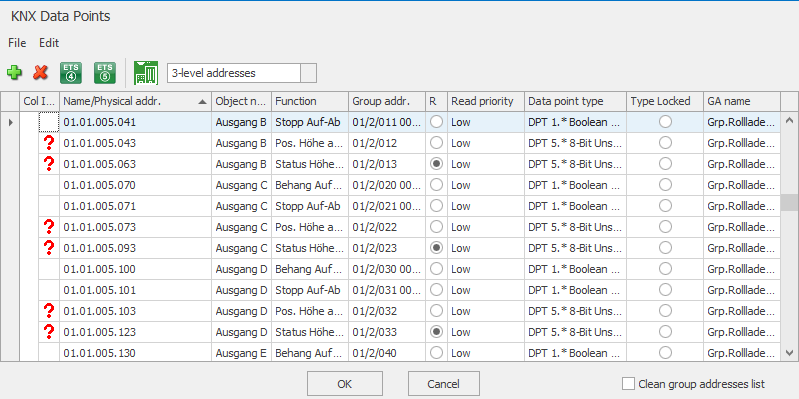
If necessary, the data points or read flags can still be adjusted. First and foremost, however, this should always be done in the ETS in order not to overwrite the changes again during a further import and to fundamentally minimise the sources of error. Always consider the ETS software as the basis - both for your KNX installation and your visualisation projects.
If the data point types have not been set in the ETS:
Not clearly defined data types are indicated by the red question mark in the first column. During import, the ETS only outputs the data width of a group address if the data point type has not been defined. For different data types there are different possibilities of interpretation. A right mouse click on the question mark opens a selection of possible data types. Select the desired data type and the question mark disappears.
Note: When importing data, EisBaer automatically selects the "common" data types to save you this work. Thus, it is usually only necessary to make these adjustments if, for example, you are working with 2-byte measurement values, date, time or counter measurement data. In these cases, follow the manufacturer's instructions in the device manual. There usually the necessary data type is indicated.
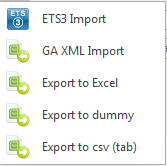
File menu
|
Import possibility of an ETS-3 project. |
Import possibility of the group addresses in XML format. Only the ETS 5 XML format is supported. |
|
The already imported group addresses are exported to an Excel file. |
|
The already imported group addresses are exported into a text file. This can be used in the ETS for dummies and filter tables. Only linked group addresses are exported. |
|
The already imported group addresses are exported into a CSV file. This export can be imported again for the drivers MQTT client and BACnet server. This ensures the function Driver Gateway |
Import-Dialogue
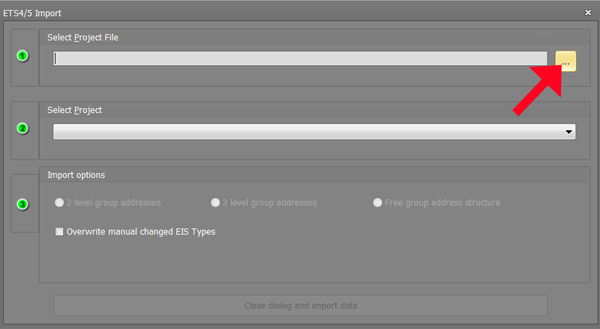
Browse to the project file you want to import and select with a double-click.
If the import is successful, all the group addresses of the project appear in the data point list.
Example of the ETS5 XML file:
<?xml version="1.0" encoding="utf-8" standalone="yes"?>
<GroupAddress-Export xmlns="http://knx.org/xml/ga-export/01">
<GroupRange Name="Keller" RangeStart="2048" RangeEnd="4095">
<GroupRange Name="Basement Electricity" RangeStart="2304" RangeEnd="2559">
<GroupAddress Name="Workshop Srom (A)" Address="1/1/1" DPTs="DPST-1-1" />
<GroupAddress Name="Basement Circuit (B)" Address="1/1/2" DPTs="DPST-1-1" />
<GroupAddress Name="Oil storage power/light (C)" Address="1/1/3" DPTs="DPST-1-1" />
<GroupAddress Name="Basement Circuit (D)" Address="1/1/4" DPTs="DPST-1-1" />
<GroupAddress Name="Central Off Power" Address="1/1/99" DPTs="DPST-1-1" />
</GroupRange>
</GroupRange>
<GroupRange Name="Facade West" RangeStart="4096" RangeEnd="6143" Description="Facade West">
<GroupRange Name="Ground Floor Shutter" RangeStart="4352" RangeEnd="4607" Description="Ground Floor Shutter">
<GroupAddress Name="Living room window 1bit stop" Address="2/1/10" Description="Living room window 1bit stop" />
<GroupAddress Name="Living room window 1bit moving object" Address="2/1/11" Description="Living room window 1bit moving object" />
</GroupRange>
</GroupAddress-Export>